Lighting
Track your lighting cues and follow spot assignments in one place.
Overview
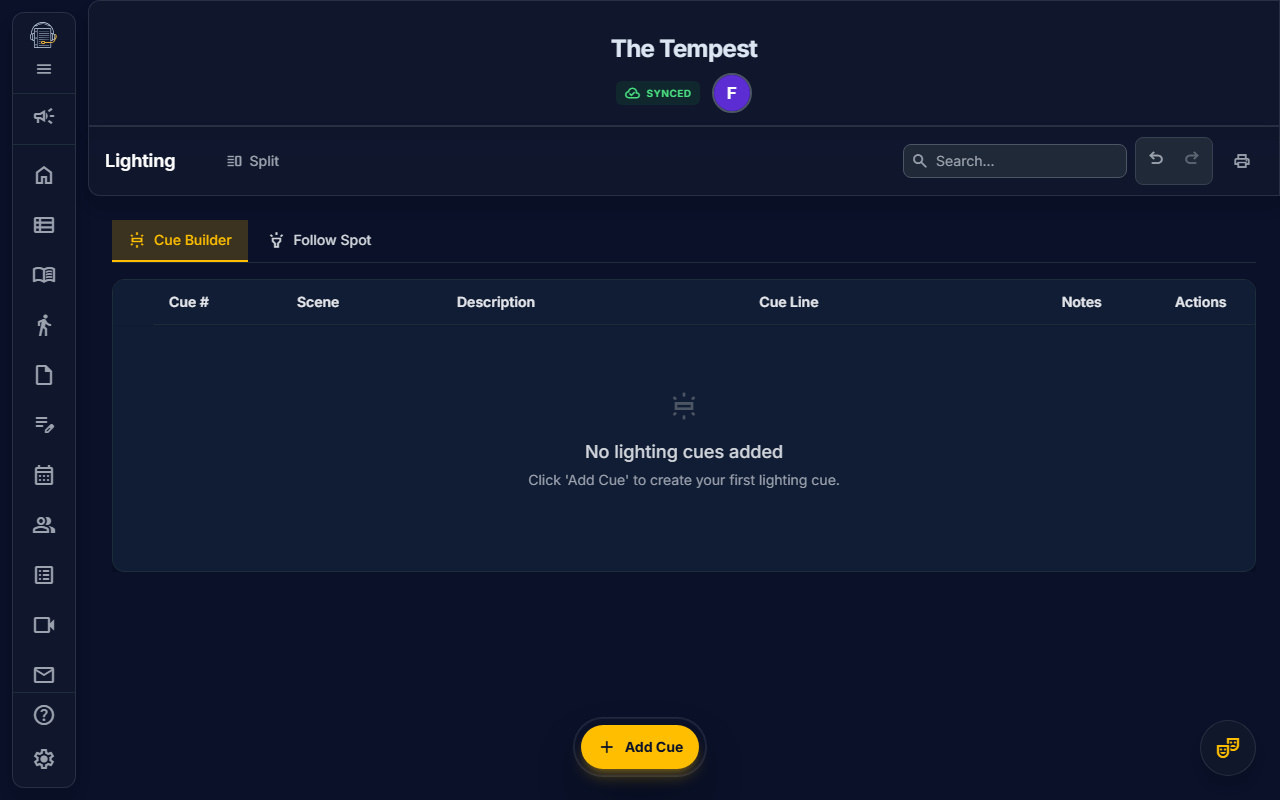
The Lighting tool provides a dedicated workspace for Stage Managers and Lighting Designers to build, manage, and print:
- Cue Builder — A scene-grouped lighting cue list (LX Q numbers, descriptions, cue lines, and notes)
- Follow Spot Setup — Define your follow spots, assign operators, and document positions
- Follow Spot Assignments — Per-cue pickups with character, action, frame/color, size, and intensity
The Lighting tool is available in the Designer workspace and requires the EDIT_LIGHTING permission.
Getting Started
- Navigate to the Lighting tab in the sidebar (tungsten emoji_objects icon)
- Choose a subtab:
| Subtab | Purpose |
|---|---|
| Cue Builder | Create and manage your LX cue list |
| Follow Spots | Set up spot operators and build per-spot cue sheets |
Cue Builder
The Cue Builder provides a traditional theatrical cue list for lighting.
Understanding Cues
Each cue entry includes:
| Field | Description |
|---|---|
| Cue Number | Your custom numbering (LX Q1, Q10.5, etc.) |
| Scene | The scene the cue belongs to |
| Description | What the cue does (e.g., "Blackout", "Warm wash DS") |
| Cue Line | The line or moment that triggers the cue |
| Notes | Additional notes for the board op or designer |
Adding Cues
- Click + Add Cue in the toolbar
- Fill in the cue number, description, and other fields
- Select the scene the cue belongs to
- Press Enter or click outside to save
Editing Cues
- Click any field in the cue row to edit it inline
- Changes auto-save immediately
- Press Escape to cancel an edit
Deleting Cues
- Click the delete icon on the cue row
- Deleted cues are soft-deleted (recoverable via undo)
Scene Grouping
Cues are visually grouped by their assigned scene, organized under Act headers. This mirrors how your cue list flows during the show.
Reordering Cues
- Drag and drop cues to reorder within a scene
- The sort order determines the print order
Cue Numbering Conventions
On Book Pro doesn't enforce a numbering scheme — use whatever works for your production:
- Sequential:
LX Q1,LX Q2,LX Q3 - Point cues:
Q10,Q10.5,Q10.7 - Department prefixed:
LX 1,LX 2
Follow Spot Setup
Before creating follow spot cues, define your spots.
Adding a Spot
- Switch to the Follow Spots subtab
- In the Spot Setup section, click + Add Spot
- Enter the spot details:
| Field | Description |
|---|---|
| Label | Spot designation (e.g., Spot 1, SR Spot, Center) |
| Operator Name | Who is running the spot |
| Position | Where the spot is located (e.g., "Booth", "Catwalk SR") |
Editing a Spot
- Click any field in the spot row to edit inline
- Changes save automatically
Deleting a Spot
- Click the delete icon on the spot row
- Warning: Deleting a spot removes its assignment from all follow spot cues
Follow Spot Assignments
Follow spot cues define what each spot does at each moment in the show.
Adding a Follow Spot Cue
- In the Follow Spots subtab, scroll to the cue list
- Click + Add Cue
- Fill in the cue fields:
| Field | Description |
|---|---|
| Cue Number | Your follow spot cue numbering (FS Q1, etc.) |
| Spot | Which spot (selected from your Spot Setup) |
| Character | Which character to pick up (dropdown from cast) |
| Action | What to do (pickup, fade, blackout, iris, etc.) |
| Frame | Gel frame or color (R33, L201, etc.) |
| Size | Beam size (full, waist, head, tight, etc.) |
| Intensity | Brightness level (0–100) |
| Scene | Scene the cue belongs to |
| Notes | Additional instructions for the operator |
Editing and Deleting
- Click any field to edit inline
- Click the delete icon to remove a cue (soft-delete with undo)
Drag-to-Reorder
Drag cues to adjust their order within a scene.
Printing
LX Cue List Report
Generate a professional print-ready LX cue list:
- Click the Print icon in the action toolbar
- Select LX Cue List from the report type dropdown
- Click Print
The report includes:
- Project header with show title
- Cues grouped by Act and Scene
- Columns: Cue #, Scene, Description, Cue Line, Notes
- Total cue count and generation date
Follow Spot Sheet Report
Generate a landscape-oriented follow spot operator sheet:
- Click the Print icon in the action toolbar
- Select Follow Spot Sheet from the report type dropdown
- Click Print
The report includes:
- Spot roster summary (spot label, operator, position)
- Cues grouped by Act and Scene
- Columns: Cue #, Spot, Scene, Character, Action, Frame, Size, Intensity, Notes
CSV Export
Exporting Lighting Cues
- Click the Download icon in the action toolbar while on the Lighting tab
- A CSV file downloads with columns: Cue Number, Scene, Description, Cue Line, Notes
- Open in Excel, Google Sheets, or any spreadsheet application
Exporting Follow Spot Cues
- Click the Download icon while on the Follow Spots subtab
- A CSV file downloads with columns: Cue Number, Spot, Character, Action, Frame, Size, Intensity, Scene, Notes
Tips for Success
emoji_objects Start building your cue list early — Even rough cue numbers help establish the flow before paper tech
emoji_objects Use consistent numbering — Pick a scheme and stick with it across the production
emoji_objects Link cues to scenes — Scene grouping keeps your cue list organized and makes printed reports much more useful
emoji_objects Set up spots before cues — Define your follow spots first so they appear in the cue dropdowns
emoji_objects Print for the booth — The Follow Spot Sheet report is designed to hand directly to your spot operators
emoji_objects Export for the LD — CSV export lets you share cue lists with the lighting designer in their preferred format
Related Guides
- Show Structure — Acts, scenes, and characters
- Sound — Sound cues and mic pack assignments
- Features Overview
Last updated: February 8, 2026 (initial release)