Notes & Collaboration
Document every moment with real-time rich text editing.
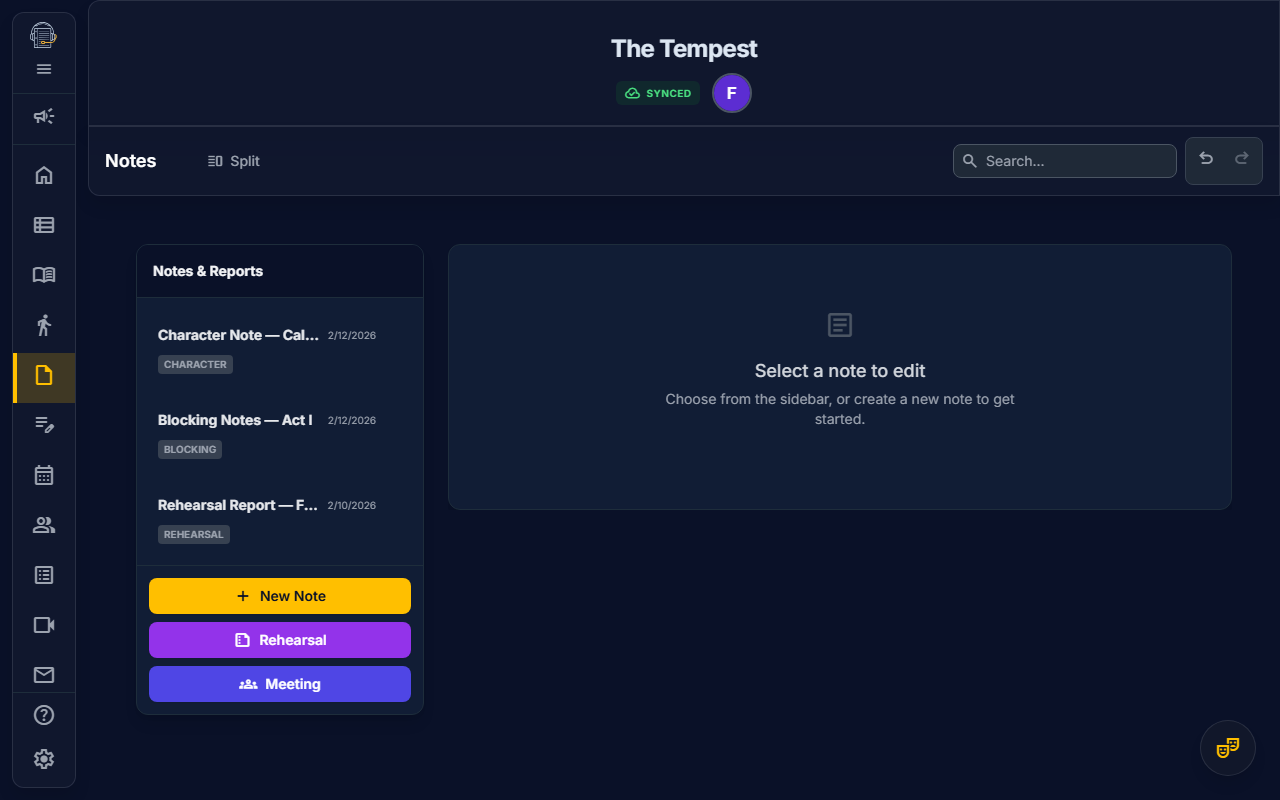
Overview
The Notes tool is your collaborative workspace for production documentation:
- Rich text editing — Full formatting with TipTap editor
- Real-time collaboration — Multiple users edit simultaneously
- Report templates — One-click rehearsal and meeting reports
- Stopwatch timer — Built-in timer with timestamp insertion
- Floating editor — Detach your window for multitasking
Getting Started
Opening Notes
- Navigate to Notes in the sidebar
- You'll see the notes list on the left and editor on the right
Understanding the Interface
| Area | Purpose |
|---|---|
| Notes List (left) | All your notes, sorted by date |
| Editor (right) | Rich text editing area |
| Toolbar (top) | Formatting tools and actions |
| Stopwatch (floating) | Timer with timestamp insertion |
Creating and Managing Notes
Creating a New Note
- Click "+ New Note" in the sidebar
- Enter a title
- Start typing in the editor
Organizing Notes
- Rename: Click the note title to edit it
- Delete: Click the trash icon on hover
- Reorder: Drag notes to reorder in the list
Rich Text Formatting
The editor supports full formatting:
Text Formatting
| Format | Shortcut | Toolbar |
|---|---|---|
| Bold | Ctrl+B | B button |
| Italic | Ctrl+I | I button |
| Underline | Ctrl+U | U button |
| — | S button |
Headers
- H1: Large section headers
- H2: Subsection headers
- H3: Minor headers
Lists
- Bullet lists: Unordered items
- Numbered lists: Ordered sequences
- Checklists: Interactive checkboxes
Other Elements
- Block quotes: Highlighted quotations
- Code blocks: Monospaced text for technical content
- Horizontal rules: Visual section dividers
Report Templates
Rehearsal Report
Generate a professionally formatted rehearsal report:
- Click "Generate Report" in the toolbar
- Select "Rehearsal Report"
- The template populates with:
- Date and call time
- Attendance section
- Work accomplished
- Notes for departments
- Schedule for tomorrow
Meeting Report
For production meetings:
- Click "Generate Report" → "Meeting Report"
- The template includes:
- Date and attendees
- Agenda items
- Discussion notes
- Action items
- Next meeting date
Customizing Templates
Templates create structured starting points. Edit freely to match your needs:
- Add or remove sections
- Change headings
- Insert additional content
Stopwatch Timer
The built-in stopwatch helps track rehearsal time:
Using the Timer
- Click the stopwatch icon to show the timer
- Click Start to begin timing
- Click Pause to stop temporarily
- Click Reset to clear the timer
Inserting Timestamps
While the timer is running:
- Click "Insert Time" in the timer panel
- A timestamp pill (e.g.,
⏱ 12:34) inserts at your cursor - Use this to log key moments during rehearsal
Use Cases
- Track scene run times
- Log when issues occurred
- Document break lengths
- Time costume quick changes
Floating Editor Mode
Detach the editor for multitasking:
How to Float
- Click the "Float" button in the toolbar
- The editor opens in a draggable window
- Position it anywhere on screen
- Continue working in other tools while editing
Returning to Docked Mode
- Click "Dock" in the floating window
- Or close the floating window
This is especially useful for:
- Taking notes while reviewing blocking
- Writing reports while checking the schedule
- Documenting during live rehearsal
Real-Time Collaboration
Multiple team members can edit simultaneously:
How It Works
- Changes appear instantly for all collaborators
- See other users' cursors in real-time
- No conflicts—CRDT technology merges edits automatically
Collaboration Tips
- Communicate: Let teammates know when you're making major edits
- Use headings: Makes it easier to work in different sections
- Check presence: See who's online in the header
Keyboard Shortcuts
| Shortcut | Action |
|---|---|
Ctrl + B | Bold |
Ctrl + I | Italic |
Ctrl + U | Underline |
Ctrl + Shift + 7 | Numbered list |
Ctrl + Shift + 8 | Bullet list |
Ctrl + Z | Undo |
Ctrl + Shift + Z | Redo |
Ctrl + S | Save (auto-saves anyway) |
Tips for Success
emoji_objects Use templates — Reports start polished, customize as needed
emoji_objects Timestamp key moments — The timer creates a running log
emoji_objects Float for multitasking — Keep notes visible while working
emoji_objects Collaborate live — Real-time editing replaces email chains
emoji_objects Print regularly — Generate PDFs for your binder
Printing Notes
Export notes for physical binders:
- Click Print in the Action Toolbar
- The note formats for clean printing:
- Title as header
- Proper margins
- Page breaks where appropriate
Video Tutorial
video_library Watch: Using the Notes Editor (Coming soon)
Related Guides
Last updated: January 2026