Sound
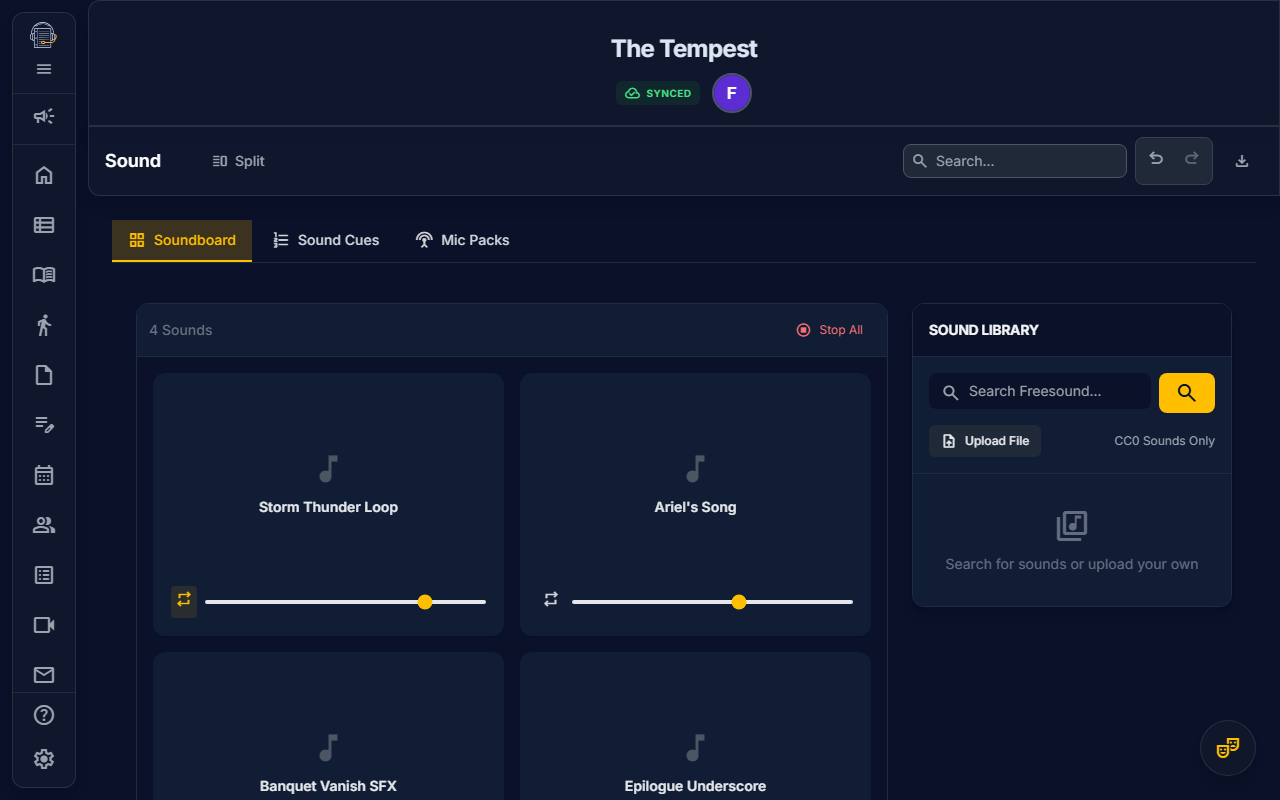
Manage your production's audio with soundboard, cue list, and Freesound integration.
Overview
The Sound tool provides a complete audio environment for rehearsals:
- Soundboard — Grid-based pads for instant SFX playback
- Library — Organize and trim your sound clips
- Sound Cues — Theatrical cue list linked to scenes
- Freesound Integration — Search and download Creative Commons audio
- Offline Support — Cached audio plays without internet
Getting Started
Opening the Sound Tool
- Navigate to Sound in the sidebar
- You'll see four sub-tabs: Soundboard, Library, Sound Cues, and Mic Packs
Understanding the Interface
| Tab | Purpose |
|---|---|
| Soundboard | Interactive pads for playback |
| Library | Manage and edit sound clips |
| Sound Cues | Scene-linked cue list |
| Mic Packs | Wireless mic pack assignments and swap tracking |
Soundboard
The Soundboard provides instant access to frequently used sounds:
Playing Sounds
- Click any sound pad to play
- Click again to stop (or let it finish)
- Use the volume slider to adjust individual clip levels
Master Controls
- Master Volume: Global volume control for all sounds
- Stop All (Panic Button): Immediately stops all playing sounds
- Loop Toggle: Enable/disable looping per clip
Customizing Pads
Each pad can be customized:
- Color: Change the pad color for visual organization
- Name: Rename clips for quick identification
- Volume: Set default playback level
- Keyboard Shortcut: Assign hotkeys for hands-free triggering
Library
The Library is where you manage all your audio clips:
Adding Sounds
Option 1: Upload from Computer
- Click "Upload Sound"
- Select an audio file (MP3, WAV, OGG, M4A)
- The clip appears in your library
Option 2: Import from Freesound
- Click "Search Freesound"
- Enter a search term (e.g., "door slam", "thunder")
- Browse results with preview playback
- Click "Download" to add to your library
Option 3: Import from Repository
- Click "From Files"
- Select an audio file from your Cloud File Repository
- The clip links to your library
Editing Clips
Select a clip to access editing options:
Waveform Trimmer
Set custom start and end points:
- Click on a clip to open the editor
- View the waveform visualization
- Drag the start marker to set where playback begins
- Drag the end marker to set where playback ends
- Changes are non-destructive (original file preserved)
Clip Settings
- Name: Rename the clip
- Volume: Default playback volume (0-100%)
- Loop: Toggle continuous looping
- Color: Visual color for soundboard pad
Deleting Clips
- Select the clip
- Click Delete
- Confirm removal
Sound Cues
The Sound Cues tab provides a traditional theatrical cue list:
Understanding Cues
Each cue entry includes:
| Field | Description |
|---|---|
| Cue Number | Your custom numbering (Q1, SQ 10, etc.) |
| Scene | Which scene the cue occurs in |
| Cue Line | The line or action that triggers the cue |
| Description | What the sound is (e.g., "Doorbell rings") |
| Sound Clip | Link to a library clip (optional) |
| Notes | Additional details |
Adding Cues
- Click "+ Add Cue"
- Fill in the cue details
- Optionally link to a sound clip from your library
- Click Save
AI-Extracted Cues (On-Demand)
Sound cues are not auto-extracted during initial script import. Instead, you trigger extraction when ready:
- Ensure you've imported a script (see Script Import)
- Go to Sound tool → Sound Cues tab
- Click "Extract from Script" in the Action Toolbar
- AI scans stage directions in your ScriptBlocks for sound cues
- A preview dialog shows detected cues with scene links
- Select which cues to add (or add all)
- Click "Import Selected"
- Link actual sound clips to complete each cue
Why on-demand? This approach:
- Lets you focus on show structure first
- Provides a dedicated review step for cues
- Avoids cluttering the initial import
- Allows re-extraction after ScriptBlock edits
Reordering Cues
- Drag and drop to reorder within a scene
- Use the sort order field for fine control
Triggering from Cue List
- Click the Play button next to any linked cue
- The associated sound clip plays immediately
Freesound Integration
Freesound.org provides millions of Creative Commons sounds:
Searching Freesound
- Go to Library tab
- Click "Search Freesound"
- Enter keywords (e.g., "glass breaking", "crowd murmur")
- Results appear with:
- Preview button
- Duration
- License type
- Download button
Downloading
- Click Preview to listen before downloading
- Click Download to add to your library
- The clip downloads and caches locally
License Information
Freesound clips are typically:
- CC0: Public domain, no attribution required
- CC-BY: Attribution required in credits
On Book Pro tracks license info for each downloaded clip.
Offline Support
Sounds work without internet:
How It Works
- Downloaded sounds are cached in your browser's IndexedDB
- Once cached, clips play even when offline
- Perfect for venues without reliable WiFi
Storage Considerations
- Sound files can be large
- Monitor your storage usage in browser settings
- Clear unused clips to free space
Mic Pack Assignments
The Mic Packs sub-tab helps A2s and Stage Managers track wireless mic pack assignments, battery status, and generate swap suggestions when packs are scarce.
Opening Mic Packs
- Navigate to Sound in the sidebar
- Click the Mic Packs sub-tab
Setup
- Set total packs — Enter the number of wireless packs available for the production
- Click "Generate Assignments" — The system assigns packs to mic-eligible actors sorted by first scene appearance
- If packs ≥ actors: everyone gets a dedicated pack
- If packs < actors: the first N actors get packs, and the swap algorithm runs for the rest
Lock State (Three-Way Cycle)
Each assignment has a lock state that you cycle by clicking the lock icon:
| State | Icon | Meaning |
|---|---|---|
| Normal | Standard assignment — available for sharing via swaps | |
| Locked | Dedicated pack (e.g., mic sewn into a costume) — never shared | |
| Low Priority | ⬇ | Preferred swap candidate — algorithm tries these packs first |
Tip: Mark ensemble or minor-role packs as Low Priority to keep principal actors' packs stable.
Minimum Pack Recommendation
A recommendation badge shows:
- Min: X — The absolute minimum packs needed (for rental budgeting)
- Min: X · Y w/ locks — If you have locked packs, the practical minimum may differ
Click "Use Minimum" to auto-set the pack count to the practical minimum.
Swap Algorithm
When packs < actors, the system suggests swaps automatically:
- Finds actors whose scenes don't overlap with a packed actor's scenes
- Prefers Low Priority packs first, then normal packs; skips locked packs
- Generates swap points at scene boundaries
- Highlights any actors with no available swap window (⚠️)
Managing Swaps
- Accept a swap → Mark as confirmed (✅)
- Reject a swap → Remove the suggestion
- Regenerate → Re-run the algorithm (preserves locks)
Scene Matrix
After generating assignments, a scrollable grid shows:
- Rows = Pack numbers
- Columns = Scenes in show order
- Cells = Which actor has the pack in each scene
- Highlighted cells = Swap points (actor changes)
Assignment Table Fields
| Column | Description |
|---|---|
| Pack # | Sequential pack number |
| Actor | The person wearing the mic |
| Characters | Characters played by this actor |
| Lock | Cycle: Normal → Locked → Low Priority |
| Battery | Cycle: Fresh → Good → Low → Dead |
| Frequency | RF frequency (editable) |
| Notes | Free text for the A2 |
Printing the Mic Plot
- Click Print in the Action Toolbar
- Select "Mic Plot" from the report list
- The report includes:
- Assignment Table — Pack #, actor, characters, frequency, notes
- Scene Matrix — Landscape grid showing who has each pack per scene
- Swap Summary — All swaps sorted by pack and scene order
Keyboard Shortcuts
| Shortcut | Action |
|---|---|
Space | Play/pause selected sound |
Escape | Stop all sounds (panic) |
| Custom keys | Trigger assigned soundboard pads |
Tips for Success
emoji_objects Build your soundboard early — Have common effects ready for day one
emoji_objects Use Freesound — Massive library of free, high-quality sounds
emoji_objects Trim to essentials — Use the waveform editor to isolate key moments
emoji_objects Test offline — Verify sounds work without network before tech
emoji_objects Assign keyboard shortcuts — Hands-free triggering during run-throughs
emoji_objects Number cues consistently — Match your lighting designer's numbering style
emoji_objects Mark ensemble packs as Low Priority — Keeps principal actors' mic assignments stable
Printing Sound Cues
Generate a paper cue list:
- Click Print in the Action Toolbar
- The cue list formats professionally:
- Cue numbers
- Scene assignments
- Descriptions and cue lines
- Notes
Video Tutorial
video_library Watch: Setting Up Your Soundboard (Coming soon)
Related Guides
- Show Structure — Scenes for cue linking
- Script Import — How script analysis works
- Features Overview
Last updated: February 8, 2026 (Mic Pack Assignments, Lock State Tri-Cycle, Minimum Packs)