Video Chat
Remote rehearsals and production meetings, built right into On Book Pro.
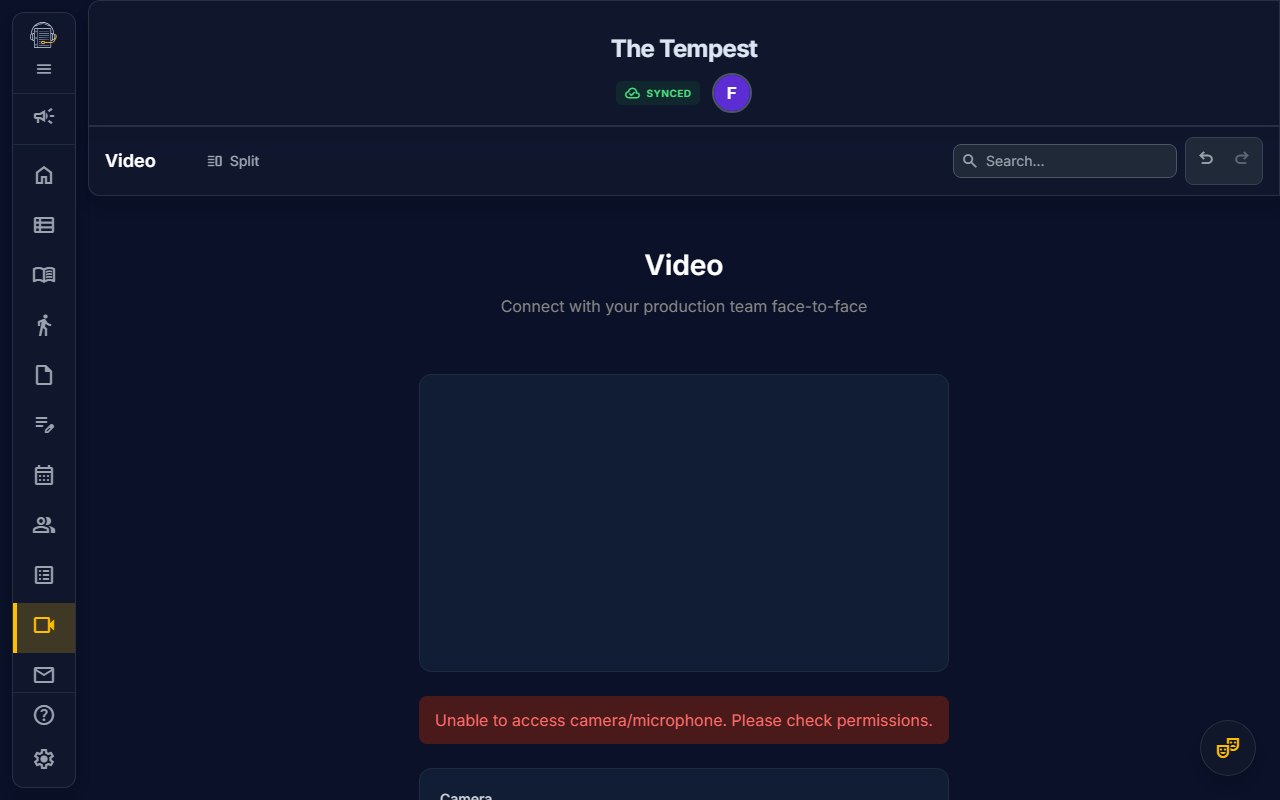
Overview
On Book Pro includes embedded video conferencing powered by Daily.co, designed specifically for theatrical workflows. Whether you're running a remote table read, conducting one-on-one actor coaching, or hosting a full production meeting, Video Chat provides specialized layouts optimized for each scenario.
Key Features
- Specialized Layouts: Four distinct video modes tailored to theatrical needs
- Lobby (Hair Check): Preview your camera and test your microphone before joining
- Real-Time Mic Level: Visual feedback to ensure you're being heard
- Role-Based Permissions: Stage Managers can start meetings; all members can join
- Transcript Capture: Meeting transcripts saved automatically (video not stored)
Starting a Meeting
Permission Required: Only Stage Managers, Production Managers, and Owners can start meetings.
- Navigate to the Video tab in the sidebar
- Click Start Meeting in the action toolbar
- Select your preferred layout from the dropdown
- Configure your camera and microphone in the lobby
- Click Join Call to enter the meeting
The system automatically creates a secure, temporary room that expires after 2 hours of inactivity.
Joining a Meeting
When a meeting is active, all project members can join:
- Navigate to the Video tab
- You'll see the Join Meeting button if a session is in progress
- The lobby lets you preview your camera and select devices
- Click Join Call to enter
The Lobby (Hair Check)
Before joining any call, you'll enter the lobby where you can:
Camera Preview
- See yourself exactly as others will see you
- Switch between multiple cameras using the dropdown
Microphone Selection
- Choose from available microphones
- Real-time level meter shows your audio input visually
- Speak to verify the meter responds—if it moves, you're good!
Layout Selection
- Choose your preferred layout before joining
- You can change layouts during the call as well
Quick Toggles
- Mute Audio: Start with your microphone muted
- Disable Video: Join audio-only if needed
Layout Modes
On Book Pro offers four specialized layouts for different production scenarios:
Meeting Mode
Best for: Production meetings, design presentations, general discussions
- Large central area for screen sharing
- Participant videos appear as floating bubbles at the bottom
- Optimized for presentations and collaborative review
One-on-One Mode
Best for: Director/actor sessions, private coaching, intimate conversations
- Two equal-sized panels side by side
- Creates a natural "face-to-face" feeling
- Perfect for focused two-person discussions
Table Read Mode
Best for: Script reads, libretto sessions, text-based rehearsals
- 60/40 screen split
- Left panel: Reserved for script/PDF viewing
- Right panel: Vertical video grid of participants
- Ideal for following along with text while seeing readers
Rehearsal Mode
Best for: Blocking sessions, run-throughs, tool-focused work
- Minimal video strip at the top of the screen
- Maximum workspace below for Blocking Tracker, Run Sheet, etc.
- Video stays present but doesn't dominate the interface
In-Call Controls
Once in a meeting, you have access to:
| Control | Action |
|---|---|
| Mute | Toggle your microphone on/off |
| Camera | Toggle your video on/off |
| Share Screen | Share your screen with participants |
| Leave | Exit the meeting |
Active Speaker Highlight
The current speaker is highlighted with a subtle pulsing border, making it easy to follow the conversation in larger meetings.
Permissions
| Action | Who Can Do It |
|---|---|
| Start Meeting | Owner, Stage Manager, Production Manager |
| Join Meeting | All project members |
| Change Layout | Any participant (affects only their view) |
Privacy & Recording
On Book Pro prioritizes your privacy:
- Transcripts Only: Meeting transcripts are saved for production documentation
- No Video Storage: Video and audio recordings are never stored
- Automatic Cleanup: Meeting rooms expire after 2 hours of inactivity
Troubleshooting
Camera/Microphone Not Working
- Check browser permissions: Ensure your browser has allowed camera/microphone access
- Close other apps: Video apps like Zoom, Teams, or OBS may lock your hardware
- Try a different device: Use the dropdown to switch to an alternative camera or mic
- Refresh the page: Sometimes a simple refresh resolves hardware detection issues
Device Not Appearing in Dropdown
- Physically unplug and replug the USB device
- Check your operating system's device manager
- Verify the device works in another application (like webcamtests.com)
Audio Level Meter Not Moving
- Ensure your microphone is unmuted in the lobby
- Check that the correct microphone is selected
- Verify your OS-level microphone permissions include your browser
Poor Video Quality
- Check your internet connection speed
- Close bandwidth-heavy applications
- Consider switching to audio-only mode in low-bandwidth situations
Tips for Great Remote Rehearsals
- Use Table Read mode for script work—the 60/40 split keeps text visible
- Switch to Rehearsal mode when blocking—maximize your workspace
- Test your setup beforehand—the lobby lets you verify everything works
- Mute when not speaking—reduces background noise for everyone
- Use good lighting—face a window or lamp for best visibility
Video Chat is available on all subscription tiers. For technical details, see the Video Chat Architecture documentation.