The Run Sheet
Your master production document — cue-by-cue action tracking.
Overview
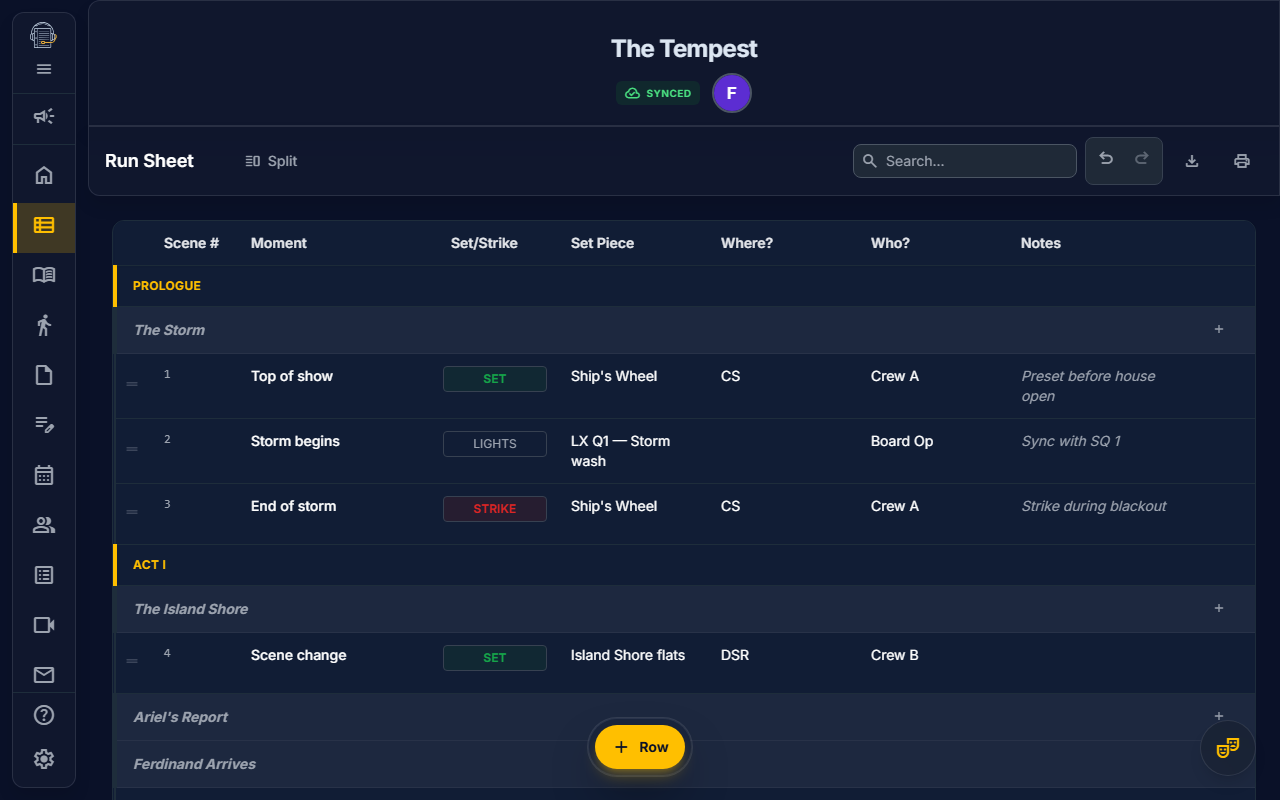
The Run Sheet is the central command document for running your show. It tracks:
- Scene-by-scene actions — What happens when
- Set changes — Furniture and scenic movements
- Personnel assignments — Who does what
- Cue moments — Precise timing notes
Getting Started
Opening the Run Sheet
- Navigate to Run Sheet in the sidebar (or press
Ctrl+7if it's your 7th tool) - The spreadsheet-style interface loads with your production data
Understanding the Interface
The Run Sheet uses a familiar spreadsheet layout:
| Column | Purpose |
|---|---|
| Scene # | Scene identifier from Show Structure |
| Moment | Cue line or timing reference |
| Set/Strike | Whether to place or remove an item |
| Set Piece | The furniture, prop, or scenic element |
| Where | Stage location (SL, SR, CS, etc.) |
| Who | Crew member responsible |
| Notes | Additional details or instructions |
Adding and Editing Rows
Adding Rows
- Click "+ Add Row" at the bottom of the sheet
- A new empty row appears
- Start typing in any cell
Editing Cells
- Click on any cell to select it
- Type to replace the content
- Tab to move to the next cell
- Enter to confirm and move down
- Escape to cancel editing
Keyboard Navigation
The Run Sheet supports Excel-like navigation:
| Key | Action |
|---|---|
Arrow Keys | Move between cells |
Tab | Move to next cell (right) |
Shift + Tab | Move to previous cell (left) |
Enter | Confirm edit, move down |
F2 | Edit current cell |
Delete | Clear cell content |
Bulk Data Entry
Paste from Spreadsheet
Copy tab-separated data from Excel or Google Sheets:
- Copy your data (Ctrl+C)
- Select the starting cell in the Run Sheet
- Paste (Ctrl+V)
- Data fills across rows and columns automatically
This is perfect for migrating existing run sheets into On Book Pro.
Reordering Rows
- Drag the row handle (left edge) to reorder
- Rows snap into position automatically
- Scene numbers update to reflect new order
Filtering and Sorting
By Scene
- Click the Scene filter dropdown
- Select specific scenes to view
- Only rows matching those scenes appear
By Who
- Click the Who filter dropdown
- Select crew members to focus on
- Useful for creating individual call sheets
Printing the Run Sheet
The Run Sheet is optimized for professional print output:
- Click the Print button in the Action Toolbar (top-right)
- Choose print options:
- All rows or filtered selection
- Include header row
- Page orientation (landscape recommended)
- Click Print
The output includes:
- Clean table formatting
- Show title and logos
- Page numbers
- Proper pagination (no row splitting)
Integration with Other Tools
| Source | Integration |
|---|---|
| Show Structure | Scene dropdown populated from acts/scenes |
| Sets | Set piece names available for reference |
| Personnel | Crew names available in "Who" column |
| Print System | Dedicated run sheet print layout |
Tips for Success
emoji_objects Use consistent scene numbering — Match your Show Structure exactly
emoji_objects Be specific in "Moment" — "Top of song" is better than "sometime"
emoji_objects Assign clear ownership — Every row should have a "Who"
emoji_objects Print for tech — Crew members work from paper copies
emoji_objects Paste to migrate — Import existing spreadsheet data easily
Common Workflows
Initial Setup
- Set up Show Structure with all scenes
- Add rows for major scenic changes
- Assign crew members to each action
- Print draft for production meeting
During Tech
- Update moments with precise cue lines
- Add discovered set moves
- Reassign based on crew availability
- Print updated copies daily
Running the Show
- Stage Manager calls cues referencing the run sheet
- Crew follows their assigned actions
- Updates made post-show as needed
Video Tutorial
video_library Watch: Creating Your First Run Sheet (Coming soon)
Related Guides
Last updated: January 2026