Rehearsal Scheduler
Plan your rehearsals with visual calendar and AEA compliance checking.
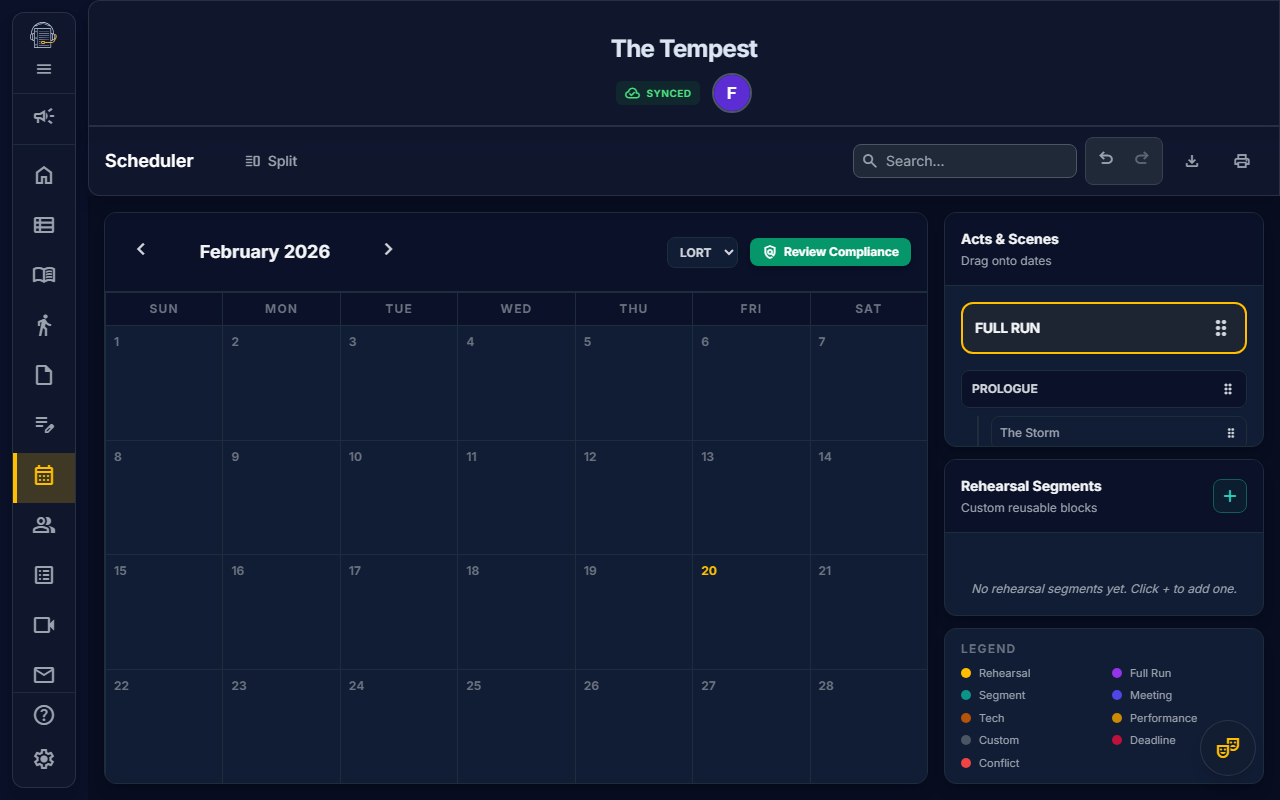
Overview
The Rehearsal Scheduler helps you:
- Plan rehearsals on a visual calendar
- Assign scenes and segments to specific dates
- Track conflicts for cast members
- Check AEA compliance (LORT or NEAT contracts)
- Create templates for recurring rehearsal patterns
Getting Started
Understanding the Interface
The scheduler has three main areas:
- Calendar Grid — Monthly view where you drag items to schedule
- Source Trays — Scenes, segments, and templates to drag onto dates
- Detail Panel — Shows scheduled items for the selected date
Scheduling Rehearsals
Method 1: Drag Scenes to Dates
- Open the Scheduler tab
- In the left tray, find the scene you want to schedule
- Drag the scene onto a calendar date
- Set the time and duration in the detail panel
Method 2: Create Rehearsal Segments
Rehearsal Segments are custom blocks with specific character assignments.
- Click "+ New Segment" in the Segments tray
- Name the segment (e.g., "Act 1 Run-Through")
- Select which characters are called
- Drag the segment onto a date
Method 3: Use Templates
Templates save time for recurring patterns:
- Create a template by clicking "Save as Template" on an existing day
- Drag the template onto future dates
- All scheduled items copy to the new date
AEA Compliance Checking
The app automatically checks union rules and warns you of violations.
Supported Contracts
| Contract | Rules Checked |
|---|---|
| LORT | 12-hour turnaround, 8-hour daily max, 36-hour weekly rest |
| NEAT | 10-hour turnaround, 7-hour daily max, 34-hour weekly rest |
How to Enable
- Go to Cast & Personnel
- For each actor, set their Contract Type (LORT or NEAT)
- Return to the Scheduler
Reading Warnings
Violations appear as red warning icons on calendar dates:
- 🔴 Turnaround Violation — Actor doesn't have enough rest between calls
- 🔴 Daily Maximum — Actor exceeds max hours in a single day
- 🔴 Weekly Rest — Actor doesn't get required consecutive days off
Click the warning to see which actors are affected.
Managing Conflicts
Viewing Conflicts
- Click on a scheduled item
- Look for the "Conflicts" section
- Red highlights indicate actors with overlapping calls
Resolving Conflicts
- Reschedule one of the conflicting items
- Remove conflicting actors from the segment
- Add a note explaining the approved conflict
Filtering for Print
When printing schedules, you can filter by audience:
- Production Team View — Shows meetings and deadlines
- Rehearsal Schedule — Cast-only view (rehearsals, techs, performances)
- Full Schedule — Everything
See the Print System section in Features Overview for details.
Tips for Success
emoji_objects Schedule early and often — The calendar helps visualize your production timeline
emoji_objects Use segments for flexibility — You can call specific actors without scheduling entire scenes
emoji_objects Check compliance weekly — Review warnings before finalizing your schedule
emoji_objects Create templates — Save time by reusing common patterns (e.g., "Standard Evening Rehearsal")
Video Tutorial
video_library Watch: Scheduling Your First Rehearsal (Coming soon)
Related Guides
External Calendar Sync
You can subscribe to your rehearsal schedule from your personal calendar app (Google Calendar, Outlook, Apple Calendar, etc.).
"Smart Feed" Technology
On Book Pro uses a Smart Feed system. Instead of syncing the entire production schedule to everyone, the calendar feed automatically filters events based on your role:
- Actors: You see only the rehearsals, fittings, and calls you are assigned to. Admin meetings and other noise are filtered out.
- Stage Managers: You see everything—every rehearsal, meeting, and deadline.
- Designers: You see design runs, production meetings, and tech rehearsals, but skip daily scene work.
How to Subscribe
- Click the "Subscribe" button in top request of the Scheduler.
- Choose your platform (Google, Apple, Outlook).
- Follow the prompts to add the subscription.
⚠️ Important Note on Sync Delays
External calendars (especially Google Calendar) check for updates periodically, typically every 12-24 hours.
Do not rely on your personal calendar for last-minute changes. Always check the app or your email for schedule changes made within 24 hours of the event.
Last updated: February 2026