Live Performance & Show Calling
Call the show from your screen — a purpose-built interface for live performances.
Overview
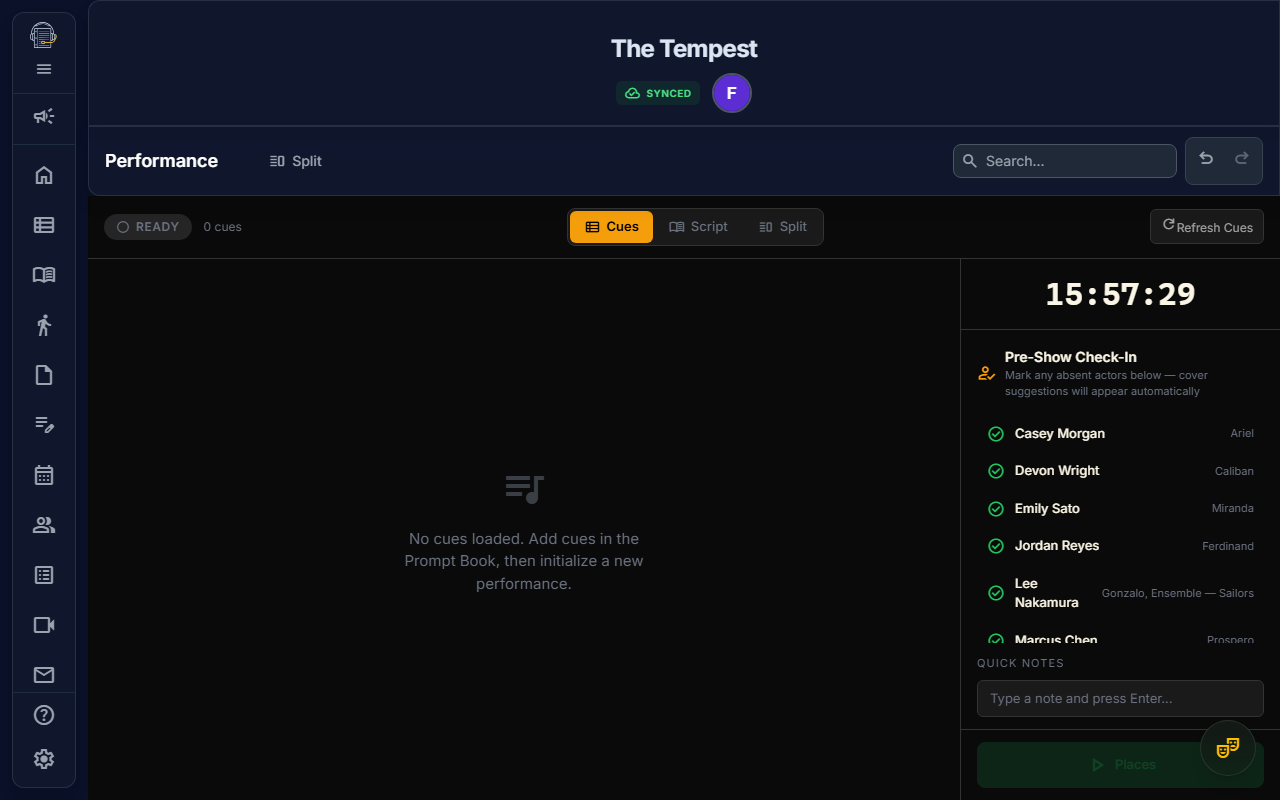
The Performance workspace gives Stage Managers a dedicated show-calling interface designed for the unique demands of live performance. It features a forced dark mode with high-contrast visuals, large-font cue cards, a show clock, and keyboard shortcuts — everything you need to call a show from the booth.
Getting Started
Prerequisites
- Placed cues: You need cues anchored in the Digital Prompt Book first. The performance workspace derives its cue sequence from your placed prompt book cues.
- Permission: You need the CALL_SHOW permission (assigned to Owner and Stage Manager roles by default).
Opening the Performance Workspace
Navigate to the Performance workspace from the sidebar. The workspace loads in forced dark mode with amber/green visuals optimized for low-light environments.
Calling a Show
1. Initialize
When you enter the Performance workspace, your cue sequence is automatically derived from the placed cues in your prompt book, ordered by their position in the script.
2. Start the Show
Click Start Performance (or use Show Controls). The show clock begins tracking elapsed time.
3. Call Cues
Each cue card shows:
- Department badge (color-coded: blue=LX, green=SQ, purple=FS, amber=DECK)
- Cue label (e.g., "LX Q15")
- Script context (3–5 lines of dialogue around the cue's anchor point)
The current cue is displayed prominently with a large GO button. The next cue previews below it.
4. Execute
| Action | Button | Keyboard |
|---|---|---|
| GO (fire current cue) | Green GO button | Space or Enter |
| Skip (advance without firing) | Skip button | → Right Arrow |
| Back (return to previous cue) | Back button | ← Left Arrow |
When you fire a cue, it records the exact timestamp and advances to the next cue.
5. Show Flow Controls
- Add Marker: Record act breaks, intermissions, or tech stops at any point
- Start/End Intermission: Track intermission duration separately
- Quick Notes: Add timestamped text notes during the show ("Late entrance Act 2", "Missed cue LX Q23")
- End Performance: Stop the clock and save the complete performance log
Show Clock
The show clock displays:
- Wall clock — current time (for coordinating with FOH and backstage)
- Elapsed time — how long the show has been running (monospace font for easy reading)
Auto-Save
During a live show, your performance data is automatically saved as a draft to Firestore every 60 seconds. If something goes wrong (browser crash, power loss), your cue timing and notes are preserved.
When you click End Performance, the complete log is saved permanently.
Performance Log
Each saved performance includes:
- Start and end timestamps
- Every fired cue with exact timing
- Skipped cues
- Show markers (act breaks, intermissions)
- Quick notes with timestamps
- Draft vs. completed status
Visual Design
The Performance workspace uses a completely different visual treatment from the rest of the app:
- Forced dark mode — always dark, regardless of your system preference
- Amber accents — warm, high-contrast colors that won't blind you in a dark booth
- Green GO button — unmistakable action target
- Red for warnings — clear visual hierarchy
- Monospace clock — easy to read at a glance
- Department borders — each cue card has a left border color matching its department
Tips
- Practice with a dry run — use the performance workspace during a tech rehearsal to get comfortable with the interface before opening night
- Use keyboard shortcuts — Space/Enter for GO is faster than clicking during a live show
- Quick Notes are your friend — jot down anything notable (late entrances, tech issues, timing adjustments) and review them post-show
- Check your cue sequence — if cues seem out of order, verify their anchor positions in the Prompt Book
Related: Digital Prompt Book — place and manage cues before using the performance workspace.