Digital Prompt Book
Your digital calling script — place cues directly on the text.
Overview
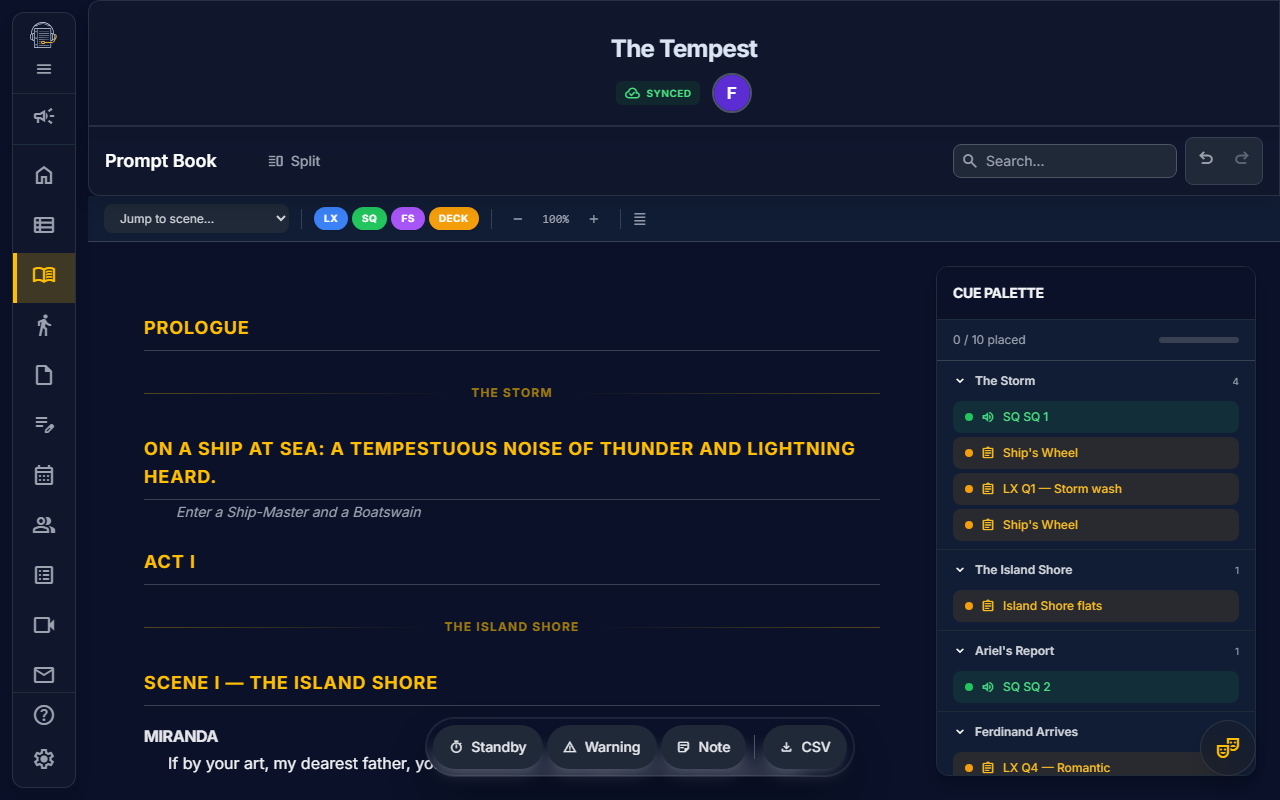
The Digital Prompt Book is the SM's primary calling document. It combines a scrollable script reader with a visual cue anchoring system, letting you place LX, SQ, FS, and Deck cues at precise words in the script — just like pencil marks in a paper prompt book, but with drag-and-drop placement and real-time sync.
Key Concepts
Script Canvas
The ScriptCanvas renders your imported script as a continuous scrollable panel. Each ScriptBlock (dialogue, stage direction, scene heading, etc.) is displayed with:
- Clickable words for cue placement
- Text scaling (adjust reading size)
- Scene navigation (jump to any scene)
Cue Departments
Each cue belongs to a department, shown as a color-coded marker on the script:
| Department | Code | Color | Source |
|---|---|---|---|
| Lighting | LX | Blue | Lighting Cue Builder |
| Sound | SQ | Green | Sound Cues tab |
| Follow Spot | FS | Purple | Follow Spot Assignments |
| Deck | DECK | Amber | Run Sheet |
Cue Anchors
A CueAnchor links a cue from its home module to a specific word in the script. Anchors are resilient — if the script is edited, the system uses fuzzy matching to re-locate the cue at the correct position.
How to Place Cues
- Open the CuePalette — the sidebar lists all available cues, grouped by scene and department
- Drag a cue from the palette onto the ScriptCanvas
- Drop it on a word — the cue marker appears inline at that position
- Click any marker to see the CuePopover with details, or to remove the anchor
Progress Tracking
The CuePalette shows a progress bar: "12/24 placed" — how many of your total cues have been anchored to the script.
Custom Cues
In addition to department cues, SMs can create custom annotations directly on the script:
- Standbys — "Standby LX Q5"
- Warnings — "Warning SQ Q3"
- Notes — Free-text callout at a script position
Use the FloatingToolbar to enter placement mode and click a word to add a custom cue.
Print Reports
Calling Script
A dual-margin layout optimized for calling from a booth:
- Left margin: LX, SQ, and FS cues
- Right margin: DECK cues
- Scene breaks with headers
Cue Synopsis
A condensed table of all placed cues in show order — department, cue number, description, and script location.
CSV Export
Download all placed cues as a spreadsheet-ready CSV for sharing with designers and crew.
Tips
- Place cues early — anchor them during tech week so your calling script is ready for performances
- Use scene navigation to jump quickly through long scripts
- Check the progress bar to ensure no cues are missed before opening night
- Cues created in their home modules (Lighting, Sound, Run Sheet) automatically appear in the CuePalette
Related: Live Performance — use the performance workspace to call your placed cues during a live show.