Show Structure
Define your production's backbone — acts, scenes, characters, and script.
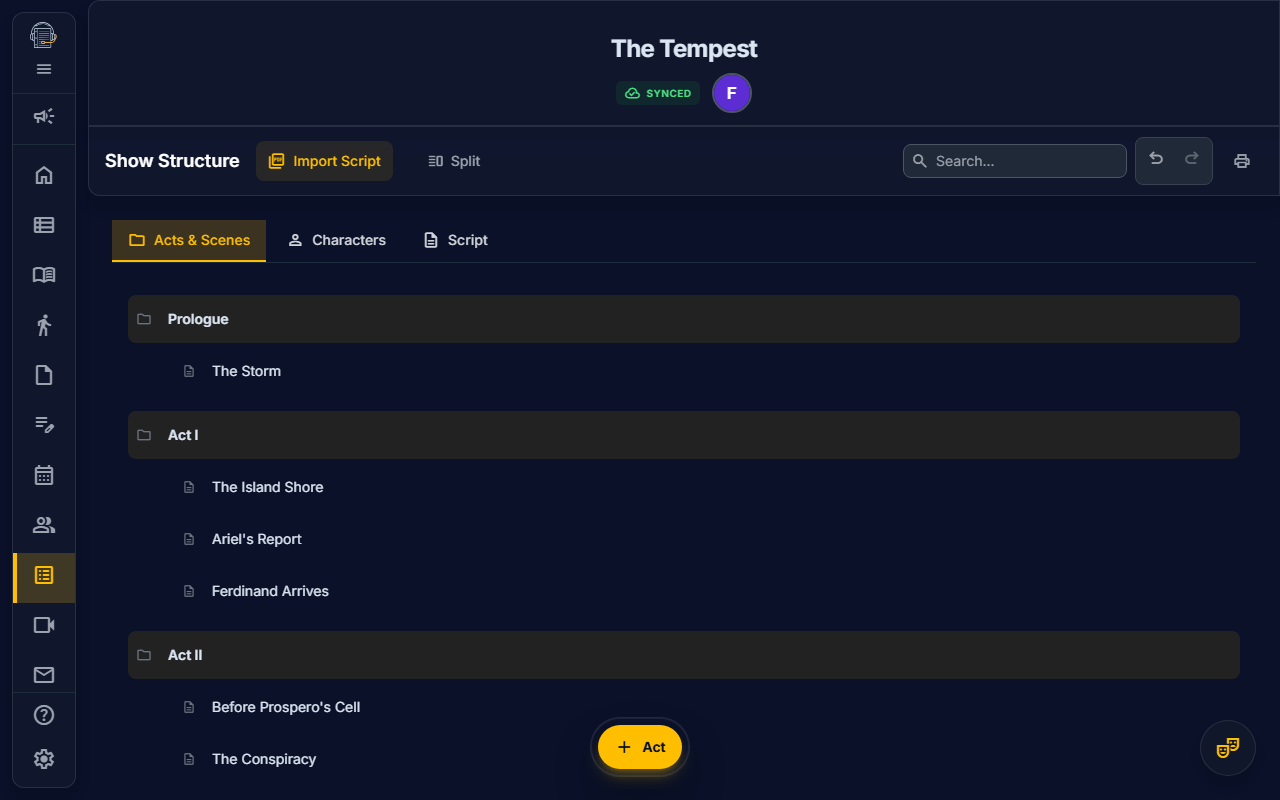
Overview
The Show Structure tool is the foundation of your production in On Book Pro. Here you define:
- Acts & Scenes: The hierarchical structure of your show
- Characters: All roles in the production with scene assignments
- Script: View and edit your imported script as ScriptBlocks
- AI Import: Automatically extract structure from your PDF script
Getting Started
Opening Show Structure
- Navigate to Show Structure in the sidebar
- You'll see three subtabs: Acts & Scenes, Characters, and Script
Managing Acts & Scenes
Adding an Act
- Click "+ Add Act" at the bottom of the acts list
- Enter the act name (e.g., "Act One", "Act I", or "Prologue")
- The act appears in the list, ready for scenes
Adding Scenes to an Act
- Find the act you want to add scenes to
- Click "+ Add Scene" within that act
- Enter the scene name (e.g., "Scene 1", "Opening Number")
- The scene appears nested under its parent act
Reordering Acts & Scenes
- Drag and drop acts to reorder them
- Drag and drop scenes within an act or between acts
- The order here determines the order in:
- Scheduler scene selection
- Blocking scene selector
- Run Sheet scene dropdowns
- Print outputs
Editing & Deleting
- Click on any act or scene name to edit it inline
- Click the trash icon (delete) to delete
- Warning: Deleting an act removes all its scenes
Managing Characters
Adding Characters
- Scroll to the Characters section
- Click "+ Add Character"
- Enter the character name
- The character appears in the list
Assigning Characters to Scenes
- Click on a character row
- Click "Assign Scenes" or the scene assignment button
- Check the scenes this character appears in
- Click Save
Scene assignments help with:
- Conflict detection in the Scheduler
- Character filtering in Blocking
- Cast call sheets
Generating Ensemble Tokens
For large casts with ensemble members:
- Click "Generate Ensemble"
- Enter the number of ensemble members
- Optionally provide a prefix (e.g., "Ensemble" creates "Ensemble 1", "Ensemble 2", etc.)
- Click Generate
This rapidly creates multiple character entries for tracking purposes.
Linking Characters to Actors
Characters can be linked to actors in the Personnel Directory:
- Go to Personnel → find the actor
- Edit their profile
- Assign them to one or more characters
Script Subtab
The Script subtab displays your imported script content:
Reading Mode (Default)
- View your script in a clean, readable format
- Navigate by scene using the scene selector
- Character dialogue is formatted correctly
Block View Mode
- Toggle using the icon
- View script as editable ScriptBlocks
- Each block has a type:
dialogue,stage_direction,scene_heading,song,transition - Click any block to edit content or reclassify type
Editing Script Blocks
- Go to Show Structure → Script
- Toggle to Block View (bar_chart)
- Click any block to open the editor
- Make changes:
- Edit text content
- Change block type
- Reassign to a different scene
- Click Save
Note: Script content only appears after importing a PDF. See Script Import.
AI Script Import
The AI uses a two-stage pipeline to analyze your script:
- Stage 1 (Gemini 2.5 Pro): Deep extraction of scenes, characters, and dialogue
- Stage 2 (Gemini Flash): Fast cleanup and formatting refinement
How to Import
- Go to File Management (hamburger menu → File Management)
- Click "Import Script (PDF)"
- Select your PDF file (text-based PDFs work best)
- Wait for AI analysis (30-90 seconds depending on length)
- Review the extracted data in Show Structure:
- Acts and scenes (Acts & Scenes subtab)
- Character names (Characters subtab)
- Full script content (Script subtab)
On-Demand Extraction (Props & Sound)
Props and sound cues are not auto-extracted during import. Extract them separately:
- Props: Go to Props tool → Click "Extract from Script"
- Sound Cues: Go to Sound → Sound Cues → Click "Extract from Script"
Best Practices for AI Import
- Use text-based PDFs — Scanned images won't work as well
- Standard formatting — The AI recognizes common theatrical script formats
- Review results — AI extraction isn't perfect; verify and edit as needed
- Import early — The AI gives you a head start; refine as you go
See the full Script Import Guide for detailed instructions.
Integration with Other Tools
Show Structure data flows throughout On Book Pro:
| Tool | How It Uses Show Structure |
|---|---|
| Scheduler | Drag scenes onto calendar dates |
| Blocking | Select scenes to load their associated sets |
| Run Sheet | Scene dropdown populated from structure |
| Props | Props linked to specific scenes |
| Costumes | Costume pieces assigned to scenes |
| Sound | Sound cues linked to scenes |
Tips for Success
emoji_objects Set up structure first — A solid foundation makes everything else easier
emoji_objects Use descriptive names — "Act 2, Scene 3 - The Ballroom" is better than "A2S3"
emoji_objects Import, then refine — AI import saves time; manual editing perfects it
emoji_objects Assign scenes to characters — This powers conflict detection in scheduling
Video Tutorial
video_library Watch: Setting Up Your Show Structure (Coming soon)
Related Guides
- Script Import — Two-stage AI analysis pipeline
- Personnel Directory — Linking actors to characters
- Props — On-demand prop extraction
- Sound — On-demand cue extraction
- Scheduler
Last updated: January 30, 2026 (Script Subtab, two-stage AI, on-demand extraction)