Blocking Tracker
Fallback recommended. Use Blocking for rehearsal tracking with a paper or exported backup for show-critical blocking.
Capture actor movement paths and communicate clearly.
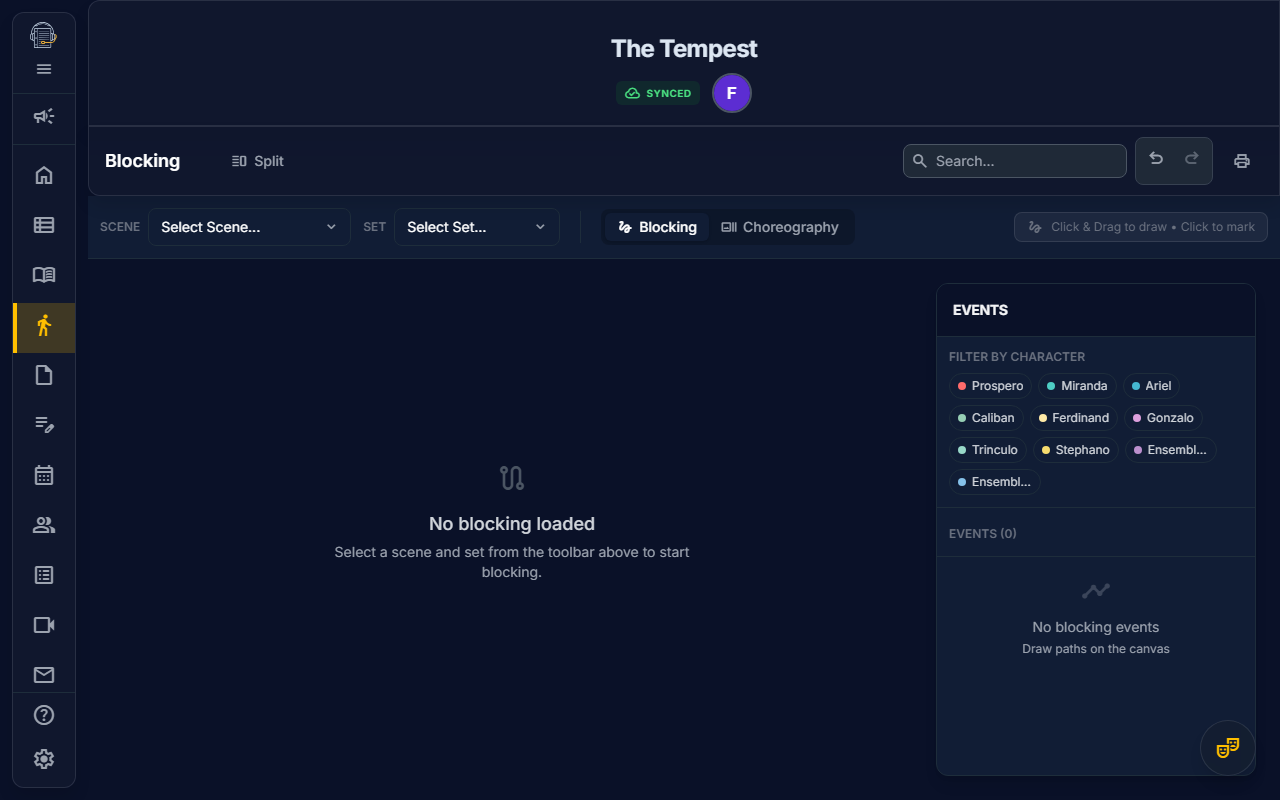
Overview
The Blocking Tracker helps you:
- Draw movement paths for actors on a 2D stage
- Link scenes to sets so the correct layout loads automatically
- Toggle between blocking and choreography modes
- Filter by character to show/hide specific paths
- Print blocking diagrams for your production book
Getting Started
Opening the Blocking Tracker
- Click "Blocking" in the main navigation
- Select a scene from the scene selector
- The stage layout for that scene loads automatically (if one is assigned)
Understanding the Interface
The Blocking Tracker has three main areas:
- Canvas — The 2D stage where you draw paths
- Side Tray — List of blocking events (collapsible on mobile)
- Toolbar — Mode toggle, character filter, and drawing tools
Drawing Movement Paths
Step 1: Select a Character
- Open Draw for in the side tray
- Select which character you're blocking
- The canvas is now ready for that character's path
Step 2: Draw the Path
- Click "Add Path" or use the drawing tool
- Click on the stage to place points for the movement
- The app draws a smooth curve between points
- Double-click to finish the path
Step 3: Add Event Details
Each path creates a blocking event in the side tray:
- Click the event in the list
- Add a label (e.g., "Enter from Stage Left")
- Add notes (e.g., "Crosses to sofa while speaking")
- Reorder events by dragging in the list
When script text is available for the selected scene, the note field can suggest dialogue from that scene so you can anchor a blocking note to the line being rehearsed.
Blocking vs. Choreography Mode
The Blocking Tracker has two modes:
| Mode | Icon | Use Case |
|---|---|---|
| Blocking | theater_comedy Gestures | Actor movement and stage crosses |
| Choreography | music_note Art Track | Dance numbers and fight choreography |
Toggle between modes using the button in the top-right toolbar. Each mode has its own set of paths that don't overlap.
Filtering Characters
Show or hide specific characters' paths:
- Open Filter by Character in the side tray
- Select a character to solo that character's paths
- Use Show All to return to the full scene
For larger casts, the character list collapses by default and shows the active character plus the total character count. Expand it when you need to choose another actor or drawing target.
This is useful for:
- Focusing on one actor during rehearsal
- Seeing interactions between specific characters
- Printing character-specific blocking sheets
Working with Sets
Linking a Scene to a Set
- Go to Set Builder
- Design your stage layout
- Click "Bake Set" and name it (e.g., "Living Room")
- In Show Structure, assign that set to a scene
- When you open that scene in the Blocking Tracker, the set loads automatically
Calibrating the Set
If your set has real-world dimensions:
- In Set Builder, click "Calibrate"
- Draw a reference line on a known distance
- Enter the real measurement (e.g., "20 feet")
- All blocking paths now reflect accurate spacing
Hiding/Showing Events
You can mute individual blocking events without deleting them:
- In the side tray, find the event
- Click the eye icon (visibility)
- The path disappears from the canvas but remains in the list
- Click again to show it
Tips for Success
emoji_objects Block incrementally — Capture major crosses first, add detail later
emoji_objects Use labels — Clear event names help actors remember staging
emoji_objects Separate blocking and choreography — Keep dance/fight separate from spoken scenes
emoji_objects Print often — Actors appreciate having blocking diagrams to review
Mobile/Tablet Usage
The Blocking Tracker is fully responsive:
- Side tray collapses to a toggle button on small screens
- Touch gestures work for drawing paths
- Pinch to zoom on the canvas
Video Tutorial
Video walkthrough: planned.
Related Guides
Last updated: January 2026