Show Structure
Script text access. Acts, scenes, and characters are core production structure; script-text-enabled projects show either the editable Script subtab or the focused Rehearsal Script subtab, depending on your role.
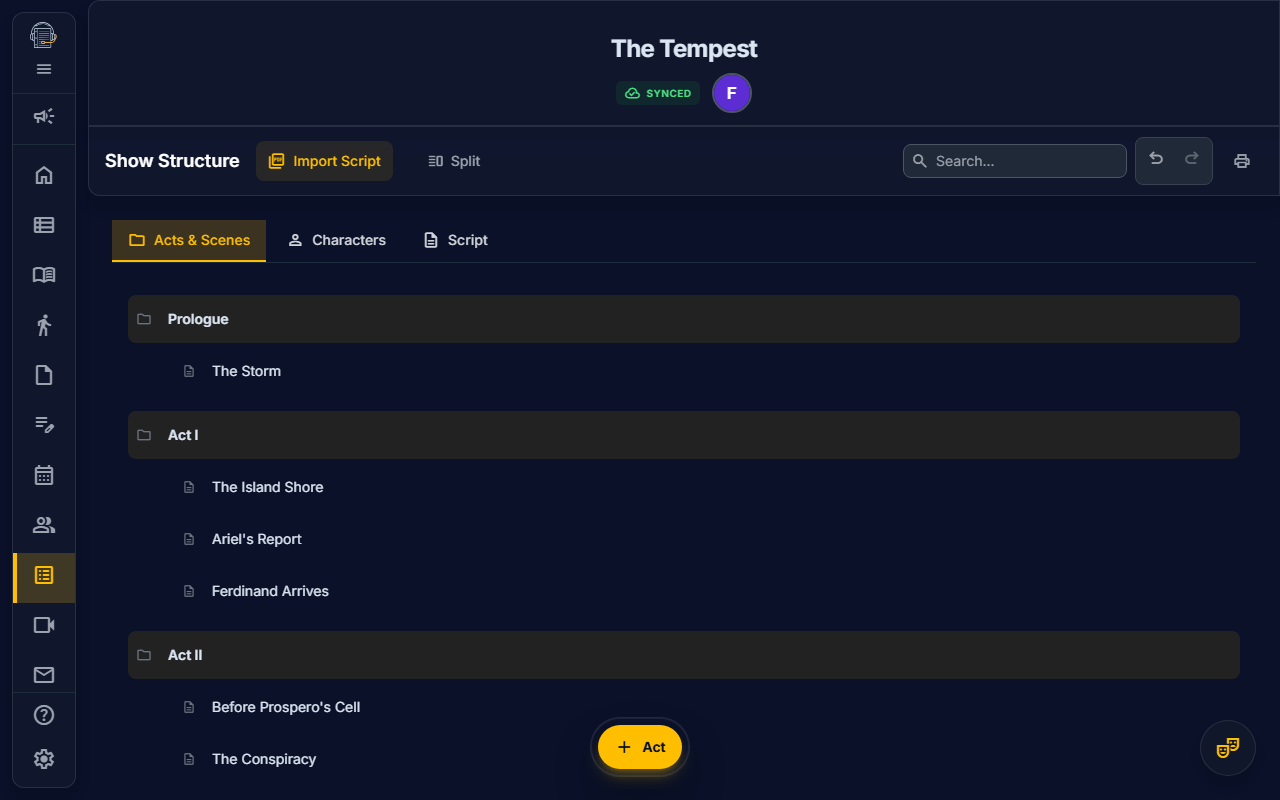
Overview
The Show Structure tool is the foundation of your production in On Book Pro. Here you define:
- Acts & Scenes: The hierarchical structure of your show
- Characters: All roles in the production with scene assignments
- Script: View and edit imported script blocks when script text access is enabled and your role can edit script text
- Rehearsal Script: Read imported script text with assigned-character highlights when script text access is enabled but your role is read-focused
- AI Import: Automatically extract structure from your PDF script
Getting Started
Opening Show Structure
- Navigate to Show Structure in the sidebar
- You'll see Acts & Scenes and Characters
- If your project has script text access, you'll also see either Script or Rehearsal Script, depending on your role
Managing Acts & Scenes
Adding an Act
- Click "+ Add Act" at the bottom of the acts list
- Enter the act name (e.g., "Act One", "Act I", or "Prologue")
- The act appears in the list, ready for scenes
Adding Scenes to an Act
- Find the act you want to add scenes to
- Click "+ Add Scene" within that act
- Enter the scene name (e.g., "Scene 1", "Opening Number")
- The scene appears nested under its parent act
Reordering Acts & Scenes
- Drag and drop acts to reorder them
- Drag and drop scenes within an act or between acts
- The order here determines the order in:
- Scheduler scene selection
- Blocking scene selector
- Run Sheet scene dropdowns
- Print outputs
Editing & Deleting
- Click on any act or scene name to edit it inline
- Click the trash icon (delete) to delete
- Warning: Deleting an act removes all its scenes
Managing Characters
Adding Characters
- Scroll to the Characters section
- Click "+ Add Character"
- Enter the character name
- The character appears in the list
Assigning Characters to Scenes
- Click on a character row
- Click "Assign Scenes" or the scene assignment button
- Check the scenes this character appears in
- Click Save
Scene assignments help with:
- Conflict detection in the Scheduler
- Character filtering in Blocking
- Cast call sheets
Generating Ensemble Tokens
For large casts with ensemble members:
- Click "Generate Ensemble"
- Enter the number of ensemble members
- Optionally provide a prefix (e.g., "Ensemble" creates "Ensemble 1", "Ensemble 2", etc.)
- Click Generate
This rapidly creates multiple character entries for tracking purposes.
Linking Characters to Actors
Characters can be linked to actors in the Personnel Directory:
- Go to Personnel -> Coverage Map
- Select the character row
- Add the actor as the primary assignment, understudy, swing, or standby
The Characters table shows coverage by role instead of a single actor dropdown. Use Personnel's Coverage Map when you need to add, move, or remove assignments.
Script Subtab
The Script subtab displays your imported script content:
Reading Mode (Default)
- View your script in a clean, readable format
- Navigate through the script outline by act, scene, page, or heading
- Search the outline and jump directly to a matching location
- Use the mini-map anchors to move through scene and page landmarks in long scripts
- Character dialogue is formatted correctly
- Right-click a block to copy that block's script text to the clipboard
Block View Mode
- Toggle using the icon
- View script as editable ScriptBlocks
- Each block has a type:
dialogue,stage_direction,heading,lyric,character_name,technical_note,front_matter,transition, orother - Click any block to edit content or reclassify type
- Changing the view mode, scene filter, type filter, or search resets any bulk selection so hidden rows are not accidentally verified
Editing Script Blocks
- Go to Show Structure → Script
- Toggle to Block View (bar_chart)
- Click any block to open the editor
- Make changes:
- Edit text content
- Change block type
- Reassign to a different scene
- Click Save
You can also right-click a block in either reading or data view to copy just that block's rendered text. If the browser blocks clipboard access, On Book shows an error toast instead of silently failing.
Note: Script content only appears after importing a PDF in a project with script text access. See Script Import.
Rehearsal Script Subtab
When a script-text-enabled project is open to a read-focused collaborator, Show Structure displays Rehearsal Script instead of the editable Script subtab.
The rehearsal view:
- Opens in a clean reading layout grouped by script page and scene label
- Provides a toolbar with selected-character chips, outline search, and More characters
- Provides a viewport mini-map with scene, page, and dialogue landmarks for fast jumps and hover previews
- Highlights the characters linked to your personnel profile by default
- Lets you add or remove highlighted characters from More characters
- Provides previous/next speech navigation for the selected characters
- Keeps block editing and classification controls out of the rehearsal-facing view
If no character is linked to your profile yet, open More characters and choose the roles you want to follow for the session.
For cast-facing users, the same Rehearsal Script view is also available directly from the Green Room workspace when script text access is enabled. Script editors continue to use the editable Script surface instead.
AI Script Import
Script import has two modes:
- Standard: extracts production metadata from the PDF.
- Script text access: runs OCR and stores script blocks for the Script/Rehearsal Script subtabs, Prompt Book, Line Notes, and Performance.
How to Import
- Go to File Management (hamburger menu → File Management)
- Click "Import Script (PDF)"
- Select your PDF file (text-based PDFs work best)
- Wait for analysis to finish
- Review the extracted data in Show Structure:
- Acts and scenes (Acts & Scenes subtab)
- Character names (Characters subtab)
- Full script content (Script subtab)
Props And Sound
Script analysis can identify props and sound cues. Availability in the Props and Sound tools depends on the current project mode and implementation. Review those tools after import and correct or add missing items manually.
Best Practices for AI Import
- Use text-based PDFs — Scanned images won't work as well
- Standard formatting — The AI recognizes common theatrical script formats
- Review results — AI extraction isn't perfect; verify and edit as needed
- Import early — The AI gives you a head start; refine as you go
See the full Script Import Guide for detailed instructions.
Integration with Other Tools
Show Structure data flows throughout On Book Pro:
| Tool | How It Uses Show Structure |
|---|---|
| Scheduler | Drag scenes onto calendar dates |
| Blocking | Select scenes to load their associated sets |
| Run Sheet | Scene dropdown populated from structure |
| Props | Props linked to specific scenes |
| Costumes | Costume pieces assigned to scenes |
| Sound | Sound cues linked to scenes |
| Prompt Book | Cues can reference imported script text when available |
| Performance | Script context can appear around cue anchors when available |
Tips for Success
emoji_objects Set up structure first — A solid foundation makes everything else easier
emoji_objects Use descriptive names — "Act 2, Scene 3 - The Ballroom" is better than "A2S3"
emoji_objects Import, then refine — AI import saves time; manual editing perfects it
emoji_objects Assign scenes to characters — This powers conflict detection in scheduling
Video Tutorial
Video walkthrough: planned.
Related Guides
- Script Import — Two-stage AI analysis pipeline
- Personnel Directory — Linking actors to characters
- Props — On-demand prop extraction
- Sound — On-demand cue extraction
- Scheduler
Last updated: May 2, 2026