Personnel Directory Guide
Sensitive data. Personnel records may contain sensitive contact or access data.
Manage your entire production team with a modern, visual directory.
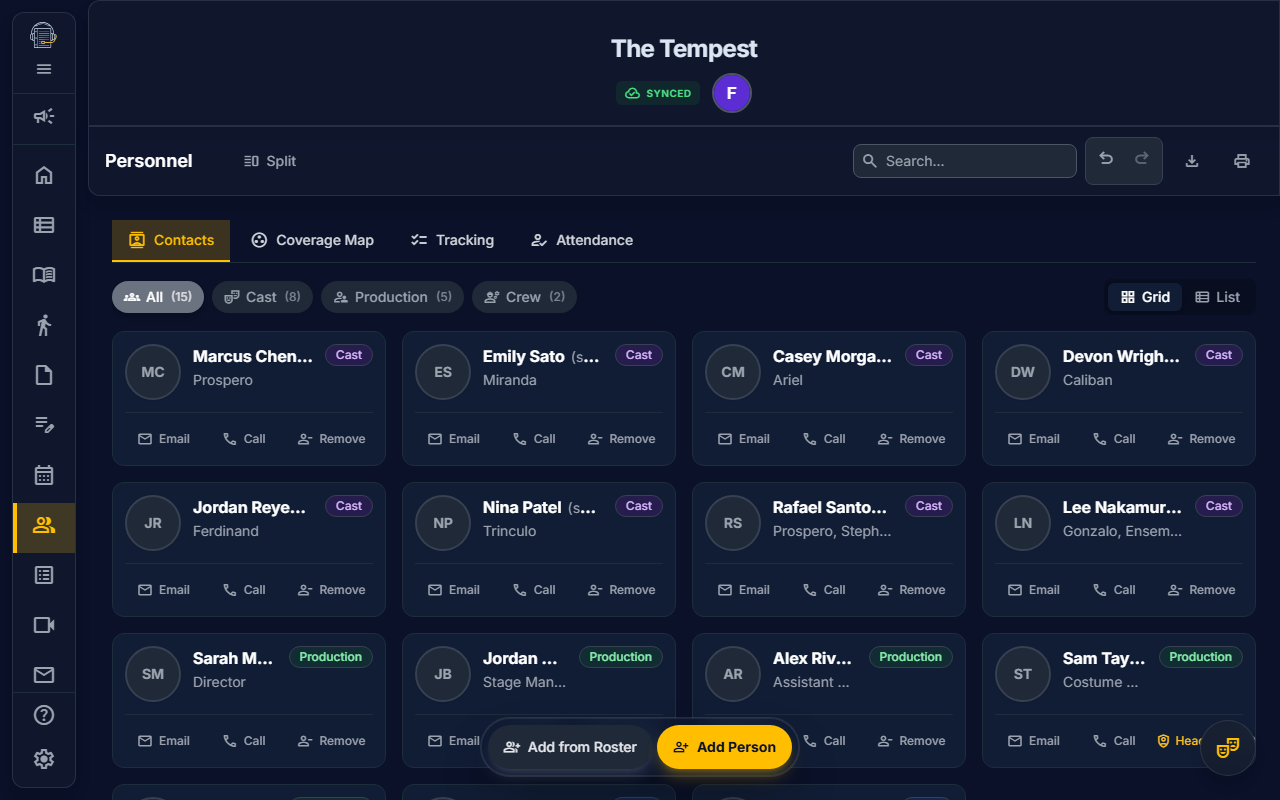
Overview
The Personnel Directory provides a unified view of all actors, crew members, and production staff in your project. With its card-based interface and powerful filtering options, you can quickly find contact information, view role assignments, and manage your company roster.
Accessing Personnel
- Navigate to the Personnel tab from the sidebar
- Select the Contacts sub-tab
- The Personnel Directory displays all company members
The Contacts subtab remains selectable when On Book Pro restores your last workspace position. If you return to Personnel after using another subtab or workspace, the app should keep the Personnel subtab controls available rather than trapping you on a stale persisted state.
View Modes
Grid View (Default)
The Grid View presents personnel as visual cards, ideal for:
- Quick visual recognition with avatars/headshots
- Browsing the company roster
- Finding contact information at a glance
Each card displays:
- Avatar/Headshot: Photo if uploaded, or initials as fallback
- Name: Personnel's display name, with roster-backed given name, family name, and sort name preserved when available
- Role/Character: Character assignments for actors, job titles for crew
- Category Badge: Color-coded indicator (Cast, Crew, Production)
- Quick Actions: Direct email and phone links
- Status Indicators: Department head badge, account link status
List View
Toggle to List View for:
- Dense data entry and editing
- Sorting by name, category, or role
- Viewing all details in spreadsheet format
Click the List toggle in the top-right to switch views.
When sorting by name, On Book Pro uses the person's saved sort name first. Roster imports can supply explicit given name, family name, and sort name fields; if they are missing, the app derives a filing name from the display name. This keeps names such as compound surnames, stage names, and preferred display names from jumping around unexpectedly.
Filtering Personnel
Use the category pills to filter the directory:
| Filter | Shows |
|---|---|
| All | Everyone in the project |
| Cast | Actors and performers |
| Production | Directors, designers, producers, and production managers |
| Crew | Stage crew, run crew, and technical staff |
Each pill shows a count of personnel in that category.
Coverage Map
The Personnel tool also includes a character-first Coverage Map workspace for casting coverage. It organizes every non-ensemble character into primary, understudy, swing, and standby buckets so stage management can see where the production is covered and where assignments are missing.
Open a character row to review the detail panel. Users with casting write access can add an available cast member, move an assignment between coverage types, remove an assignment, or add assignment notes. Users without casting write access can still review the current coverage in read-only mode.
Coverage Map assignments are stored as cast assignments rather than as one actor field on the character. That keeps primary casting, covers, swings, and standbys tied to the same character model that Show Structure, calendar feeds, call sheets, and rehearsal script highlighting use.
Quick Actions
Email
Click the Email button on any card to open your email client with the person's address pre-filled.
Phone
Click the Call button to initiate a phone call (mobile) or copy the number (desktop).
View Details
Click anywhere on a card to open the detailed profile modal.
Adding Personnel
- Click Add Person in the floating toolbar
- Fill in the basic information:
- Name (required)
- Email (optional, enables account linking and future email invites)
- Category (Cast, Crew, or Production)
- Click Add Person
The new personnel record is created immediately. When the person signs in with a matching email, they can claim their profile and add their own details.
Self-Service Profile Completion
On Book Pro supports a self-service onboarding workflow:
- Stage Manager adds personnel with name and email
- Person signs in to On Book Pro with that email
- System auto-matches the email and prompts them to claim their profile
- Person completes their profile in Settings -> Profile:
- Phone number
- Emergency contact
- Bio and notes
- Headshot upload
This reduces data entry for Stage Managers while ensuring accurate contact information from each team member.
URL Sharing
Filter and view settings are saved in the URL. Share a link like:
https://onbook.app/project/123/personnel?view=grid&filter=crewRecipients will see the same filtered view you're looking at.
Visual Indicators
| Indicator | Meaning |
|---|---|
| Head badge | This person is a department head |
| Link icon | Person's account is linked to their personnel record |
| Category colors | Purple = Cast, Blue = Crew, Green = Production |
| Email delivery issue | The roster email has a recent bounce, suppression, spam complaint, or delivery failure that may need correction |
Roster admins can clear an email delivery issue after they have corrected the address or resolved the delivery problem. Delivery issues are surfaced from the Communications delivery telemetry, so review the related email history before clearing an issue.
Keyboard Navigation
The Personnel Directory is fully keyboard accessible:
- Tab: Move focus between cards
- Enter/Space: Open the focused card's detail modal
- Arrow keys: Navigate within modals and forms
Tips
- Keep emails up to date: Email matching enables automatic account linking
- Use Grid View for browsing: The visual cards make it easy to recognize faces
- Use List View for editing: Better for bulk data entry and reordering
- Encourage self-service: Have team members complete their own profiles for accuracy
Add from Roster
If your organization maintains a Company Roster (via the Admin Portal), you can quickly add personnel from it:
- Click "Add from Roster" in the Personnel toolbar
- Browse or search the org-wide roster
- Select a person — their name, email, phone, and category are pre-filled
- Click Add to create the personnel record
Roster-linked personnel automatically stay in sync:
- Contact info changes on the roster propagate to linked personnel records
- Roster identity fields such as given name, family name, and sort name are preserved for reliable directory sorting
- If you edit a roster-linked person's profile at the project level, the changes queue for admin review in the Dashboard
For information about personnel linking and account association, see the Admin Portal in the application.