Live Performance & Show Calling
Requires script text access. Keep a paper calling script available for performance fallback.
Overview
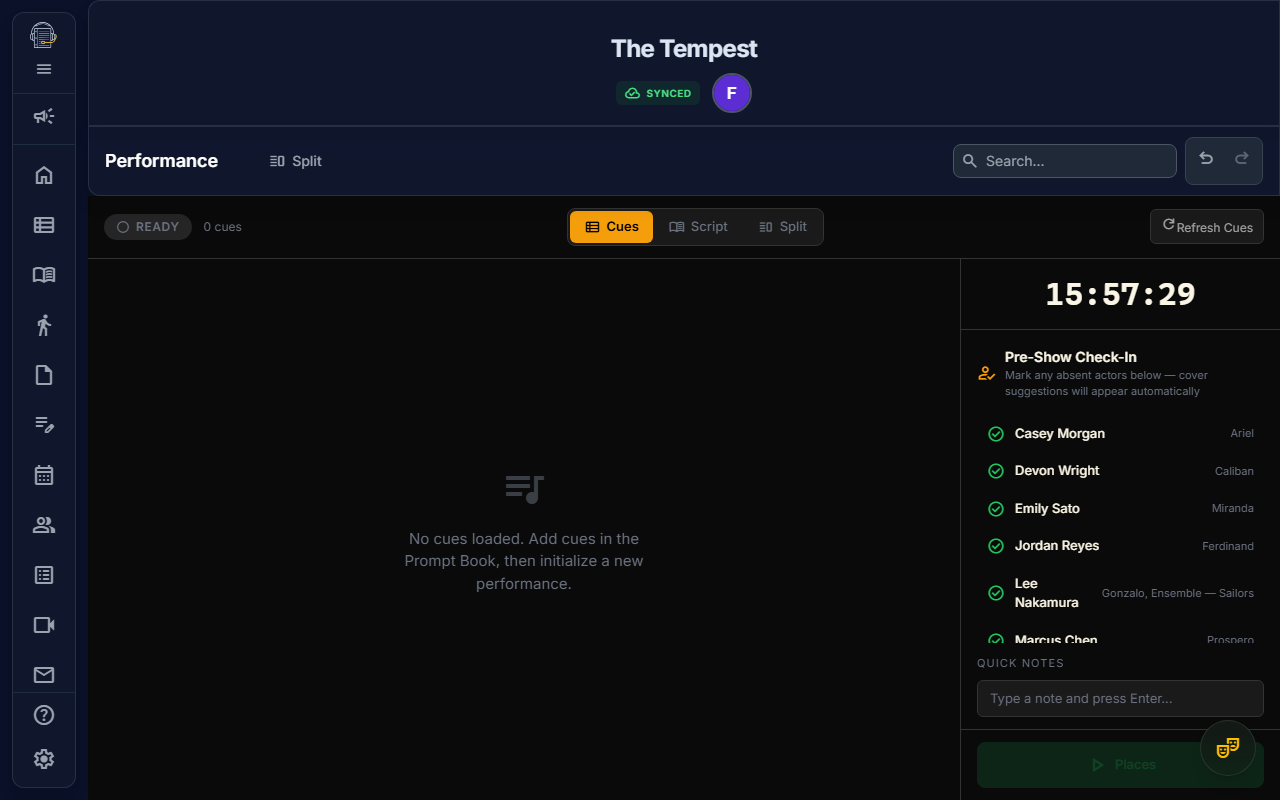
The Performance workspace gives Stage Managers a dedicated show-calling interface designed for the unique demands of live performance. It features a forced dark mode with high-contrast visuals, large-font cue cards, a show clock, and keyboard shortcuts — everything you need to call a show from the booth.
Getting Started
Prerequisites
- Placed cues: You need cues anchored in the Digital Prompt Book first. The performance workspace derives its cue sequence from your placed prompt book cues.
- Permission: You need the CALL_SHOW permission (assigned to Owner and Stage Manager roles by default).
- Script text access: The project must have
scriptTextAccessenabled.
Opening the Performance Workspace
Navigate to the Performance workspace from the sidebar. The workspace loads in forced dark mode with amber/green visuals optimized for low-light environments.
Calling a Show
1. Initialize
When you enter the Performance workspace, its idle calling view is a live projection of the placed source cues and custom standbys, warnings, and notes in your prompt book. Source cue labels come from their owning Lighting, Sound, Follow Spot, Fly, Projections, or Run Sheet records. Cues and the surrounding script context follow the act-and-scene order in Show Structure, even when the imported script blocks were stored in a different order.
For a cloud project, Places and Lock for Show remain unavailable while Prompt Book, Show Structure, script blocks, or a placed cue's owning source is still loading. Wait for those sources to resolve. If a placed source cue was deleted or cannot be found, return to Prompt Book and repair or remove that placement before calling the show.
2. Lock And Refresh
Before a run, use Lock for Show to store a local copy of the current projected cue sequence and its fingerprint. While Performance is still idle, later Prompt Book changes make the control show Update lock; update it if you want the stored copy to match the current projection. The current app uses that copy for lock age and staleness status but does not restore or call a show from it, so keep the paper fallback available. The idle projection already follows Prompt Book edits reactively; Refresh Cues does not create or freeze a separate sequence.
3. Start the Show
Click Places. The show clock begins tracking elapsed time, and Performance snapshots the projected cue sequence. Prompt Book edits made after Places do not change that active run; end or reset the run before starting again with a newer projection.
4. Call Cues
Each cue card shows:
- Department badge (color-coded for LX, SQ, FS, DECK, FLY, and AV)
- Cue label (e.g., "LX Q15")
- Script context (3–5 lines of dialogue around the cue's anchor point)
The current cue is displayed prominently with a large GO button. The next cue previews below it.
Use the header layout controls to switch between Cues, Script, and Split views. Each layout reads the same projected sequence while idle and the same runtime snapshot after Places.
5. Execute
| Action | Button | Keyboard |
|---|---|---|
| GO (fire current cue) | Green GO button | Space |
| Skip (advance without firing) | Skip button | ↓ Down Arrow |
| Back (return to previous cue) | Back button | ↑ Up Arrow |
When you fire a cue, it records the exact timestamp and advances to the next cue.
6. Show Flow Controls
- Add Marker: Record act breaks, intermissions, or tech stops at any point
- Start/End Intermission: Track intermission duration separately
- Quick Notes: Add timestamped text notes during the show ("Late entrance Act 2", "Missed cue LX Q23")
- End Show: Stop the clock and save the complete performance log
Show Clock
The show clock displays:
- Wall clock — current time (for coordinating with FOH and backstage)
- Elapsed time — how long the show has been running (monospace font for easy reading)
Auto-Save
During a live show, your performance data is automatically saved as a draft to Firestore every 60 seconds. If something goes wrong (browser crash, power loss), your cue timing and notes are preserved.
When you click End Show, the complete log is saved permanently. If the app shows pending offline writes, keep the browser open until it can reconnect and sync.
Performance Log
Each saved performance includes:
- Start and end timestamps
- Every fired cue with exact timing
- Skipped cues
- Show markers (act breaks, intermissions)
- Quick notes with timestamps
- Draft vs. completed status
Visual Design
The Performance workspace uses a completely different visual treatment from the rest of the app:
- Forced dark mode — always dark, regardless of your system preference
- Amber accents — warm, high-contrast colors that won't blind you in a dark booth
- Green GO button — unmistakable action target
- Red for warnings — clear visual hierarchy
- Monospace clock — easy to read at a glance
- Department borders — each cue card has a left border color matching its department
Tips
- Practice with a dry run — use the performance workspace during a tech rehearsal to get comfortable with the interface before opening night
- Use keyboard shortcuts — Space for GO, Up for the previous cue, and Down to skip are faster than clicking during a live show
- Quick Notes are your friend — jot down anything notable (late entrances, tech issues, timing adjustments) and review them post-show
- Check your cue sequence — if cues seem out of order, verify their anchor positions in the Prompt Book
- Update the lock after cue edits — verify the reactive idle projection, then update any stale offline lock before the run
Related: Digital Prompt Book — place and manage cues before using the performance workspace.