Production Management
Planning aid. Production dashboards and deadlines support planning but do not replace human production management.
Plan, track, and report on production deadlines with ease.
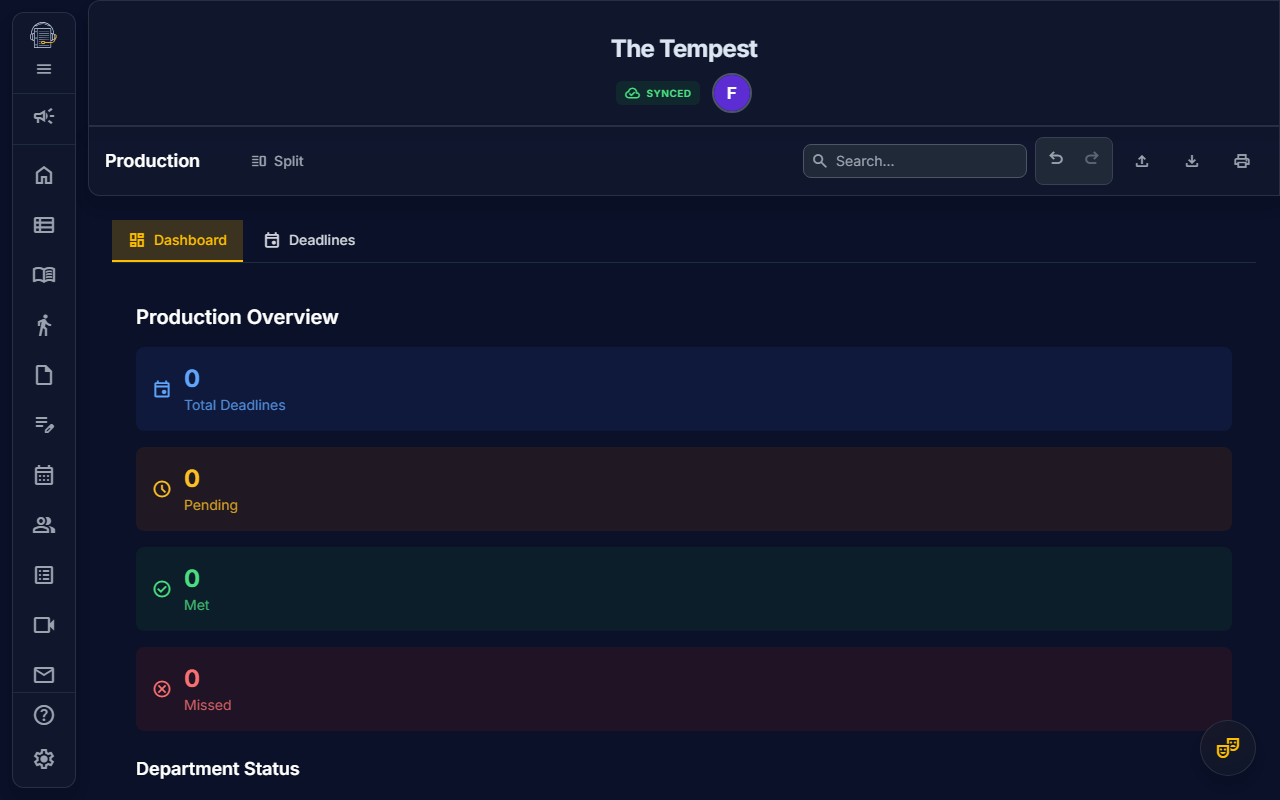
Overview
The Production Management module provides production teams with a centralized command center for tracking deadlines, monitoring progress, and generating professional reports. Designed for Production Managers and Stage Managers, this tool brings visibility to all the moving pieces of your production timeline.
Key Features
Program Materials Export
Production can package public-facing program materials from the current Personnel records:
- Program CSV — Program name, production role, bio text, bio filename, and headshot filename
- RTF bios — One file per profile with a saved program biography
- Project headshots — Project-uploaded profile images when the exporter can access them
Open a cloud project, then use Download program materials from the Production dashboard. Before the download starts, On Book shows a readiness summary for missing production roles, missing bios, and missing project-uploaded headshots. The downloaded ZIP is named from the production title and export date.
Program names use the profile's program name when present. Production roles are derived from the person's explicit title or, for cast profiles, their linked character assignments.
Dashboard Analytics
Get a bird's-eye view of your production's health with real-time metrics:
- Total Deadlines: Count of all production milestones
- Pending: Deadlines awaiting completion
- Met: Completed on time ✅
- Missed: Completed late ⚠️
- Overdue: Past due date but not yet complete 🔴
- Completion Rate: Visual progress bar showing overall progress
- Success Rate: Percentage of deadlines met on time
Department Breakdown
See how each department is performing:
- Individual department metrics (Pending, Met, Missed counts)
- Completion percentage per department
- Department head assignments
- Color-coded status indicators
Budget Health Monitoring
View integrated budget health from Costumes and Props:
- Allocated vs actual spending
- Color-coded indicators (Green: on track, Amber: at risk, Red: over budget)
- Progress bars for quick visual assessment
Deadline Management
Create and manage production milestones efficiently:
Creating Deadlines
- Navigate to Production → Deadlines
- Click the + button (or keyboard shortcut)
- Fill in the deadline details:
- Title: What needs to be done (e.g., "Props List Finalized")
- Due Date: When it's needed
- Department: Which team is responsible
- Assigned To: Specific department head
- Notes: Additional context or requirements
Status Tracking
Deadlines move through clear status states:
- Pending: Not yet complete
- Met: Completed by the due date ✅
- Missed: Completed after the due date ⚠️
- Overdue: Pending and past due date (visual warning)
Ping Functionality
Need to remind someone about a deadline? Use the Ping feature:
- Click the ping icon on any deadline
- Review the linked deadline, due date, department, and optional message
- Review the delivery audience before sending
- Send the reminder
Linked deadline pings can resolve the deadline's department audience, show deliverable recipients, flag contacts missing email addresses, and include one-off external recipients or one-send removals. The delivery is recorded in Communications history with the selected audience, recipient snapshot, linked deadline, delivery status, and any partial-delivery errors.
Professional Reports
Generate publication-ready deadline reports:
Accessing Print
- Navigate to the Production tool
- Click the Print icon in the action toolbar
- Select "Production Deadlines" from report types
- Optionally, select a department filter to narrow the report to a single department
- Configure print settings
- Click Print
Report Contents
The printed report includes:
Header Section
- Report title: "Production Deadlines Report"
- Project name
- Generation date
Summary Statistics
- Five-metric overview (Total, Pending, Met, Missed, Overdue)
- Color-coded metrics for quick scanning
Full Deadline Table
- Sorted chronologically by due date
- Columns: Title, Department, Assigned To, Due Date, Status
- Color-coded status indicators
Department Breakdown
- Per-department metrics
- Department head assignments
- Completion percentages
Department Filtering
Filter the deadlines report by a specific department:
- In the print configuration modal, find the "Filter by Department" dropdown
- Select a department (e.g., Props, Costumes, Lighting)
- The report will only include deadlines assigned to that department
- Summary statistics recalculate for the filtered results
Leave set to "All Departments" for a complete production overview.
CSV Export
Export production data to spreadsheets:
- Click the Download icon (↓) in the action toolbar
- Two CSV files are downloaded:
- Deadlines CSV — All deadlines with status, department, and assignee
- Tracking CSV — Personnel compliance matrix (tracking columns)
For program-book and marketing handoff, use Download program materials instead of the action-toolbar CSV export.
User Interface
Tab Structure
The Production tool has two subtabs:
| Tab | Purpose |
|---|---|
| Dashboard | Analytics, metrics, and visual overview |
| Deadlines | Create, edit, and manage individual deadlines |
Dashboard Layout
- Metrics Row: Top-level counts (Total, Pending, Met, Missed)
- Department Cards: Individual department status
- Completion Progress: Visual progress bars
- Budget Health: Costume and Props budget integration (when available)
- Overdue Alerts: Highlighted overdue deadlines
Deadlines View
- Deadline List: Sortable table of all deadlines
- Create Button: Quick-add new deadlines
- Status Actions: Mark complete, ping, edit, delete
- Filter/Sort: Organize by date, department, or status
Permissions
Who Can Access Production
| Role | View Dashboard | Create/Edit Deadlines | View Budget Health |
|---|---|---|---|
| Owner | ✅ | ✅ | ✅ |
| Production Manager | ✅ | ✅ | ✅ |
| Stage Manager | ✅ | ✅ | ✅ |
| Designer | ✅ | ❌ | ✅ |
| Actor | ❌ | ❌ | ❌ |
| Crew | ❌ | ❌ | ❌ |
Best Practices
Setting Up Deadlines
- Start Early: Add deadlines during the planning phase
- Be Specific: Use clear titles ("Sound Design Complete" vs "Sounds")
- Assign Owners: Every deadline should have an assigned person
- Link Departments: Helps with filtering and reporting
Tracking Progress
- Daily Check-ins: Review Dashboard for updates
- Mark Promptly: Update status as soon as deadlines are met
- Use Pings: Gentle reminders are better than missed deadlines
- Review Overdue: Address overdue items immediately
Generating Reports
- Weekly Reports: Print summary for production meetings
- Department Copies: Filter reports by department for focused reviews
- Archive: Keep printed records for post-production analysis
Integration with Other Features
Scheduler Connection
Deadlines appear in the Scheduler as a distinct event type:
- Visual differentiation from rehearsals and meetings
- Calendar view shows all upcoming deadlines
- Filtered appropriately in cast-facing schedules
Personnel Linking
- Deadlines can be assigned to specific personnel
- Department heads see their deadlines highlighted
- Ping notifications reach specific users
Budget Dashboard
- Budget health data flows from Costumes and Props modules
- Real-time spending updates visible in Production Dashboard
- No duplicate data entry required
Keyboard Shortcuts
| Action | Shortcut |
|---|---|
| Open Production | Alt + P |
| Switch to Dashboard | Tab then Enter |
| Switch to Deadlines | Tab then Arrow then Enter |
Tips for Success
- Color Coding: Use the status colors to quickly identify issues
- Progress Bars: Watch completion rates trend upward over time
- Early Warnings: Address "Overdue" items before they become "Missed"
- Print for Meetings: Physical reports aid production discussions
- Budget Awareness: Check budget health alongside deadlines
Frequently Asked Questions
How do I mark a deadline as complete?
In the Deadlines view, click the deadline row and select "Mark Met" or "Mark Missed" from the actions menu.
Why can't I see the Production tab?
The Production tool requires appropriate permissions. Check with your project owner to ensure you have access.
Can I filter the deadline report by department?
Yes! When printing the Production Deadlines report, use the "Filter by Department" dropdown in the print configuration modal. Select any department to see only its deadlines, or leave it on "All Departments" for the full report.
How does budget health relate to deadlines?
Budget health provides context—if a department is over budget, it may affect their ability to meet upcoming deadlines. The integration helps production managers see the full picture.
Can actors see the Production dashboard?
No. The Production tool is intended for production staff and stage management only.
Last updated: June 2, 2026. For more features, see the Features Overview.