Social Feed
Not for emergencies. Use Feed for production updates, not emergency communication.
Stay connected with your production team through a modern communication hub.
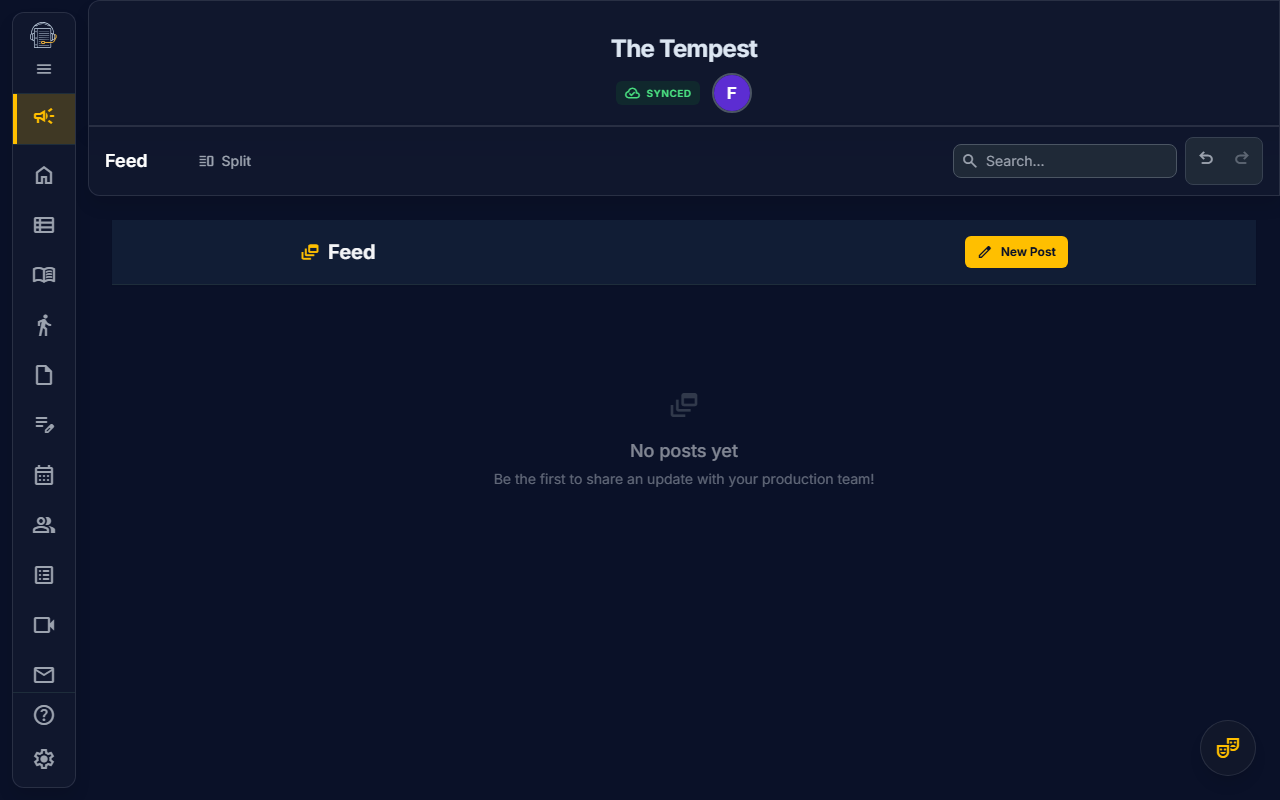
Overview
The Feed is your production's social media-style communication center:
- Post updates — Share announcements, questions, and information
- Rich media — Attach photos, videos, and audio clips
- @mentions — Notify specific team members or departments
- Content linking — Reference scenes, props, characters, and more
- Pinned announcements — Keep important posts at the top
- Reactions — Acknowledge posts and comments without adding noise
Getting Started
Opening the Feed
- Navigate to Feed in the sidebar
- You'll see the main feed with recent posts
The Feed Interface
| Area | Purpose |
|---|---|
| Post Composer | Create new posts at the top |
| Feed Timeline | Scrollable list of posts |
| Notification Badge | Shows unread posts/mentions |
Creating Posts
Writing a Post
- Click in the composer at the top of the feed
- Write your message
- Add media, mentions, or links (optional)
- Click Post
Post Types
| Type | Use Case |
|---|---|
| Text | General updates and questions |
| Media | Share photos, videos, or audio |
| Announcement | Important notices (can be pinned) |
Adding Media
Supported Media Types
| Type | Formats | Use Case |
|---|---|---|
| Photos | JPG, PNG, GIF, WebP | Costume references, set photos |
| Videos | MP4, WebM, MOV | Choreography clips, rehearsal recordings |
| Audio | MP3, WAV, OGG, M4A | Rehearsal tracks, vocal demos |
Uploading Media
- Click the attachment icon (attach_file) in the composer
- Choose your upload method:
- Upload new file — From your computer
- From repository — Select from Cloud Files
- The media attaches to your post
Media Best Practices
- Compress videos — Large files take longer to upload
- Use repository — Reuse files already in the project
- Add context — Include text explaining the media
@Mentions
Notify specific people or departments with @mentions:
Mentioning Users
- Type
@in the composer - Start typing a name
- Select from the autocomplete dropdown
- The person receives a notification
Mentioning Departments
Reach entire teams:
@Props— Props department@Costumes— Costume department@Sound— Sound department@Production— Production team@Cast— All cast members@Crew— All crew members
Who Gets Notified?
- Individual mentions: That specific user
- Department mentions: All users with that role
- Notifications appear in the header badge
Content Linking
Reference project elements directly in your posts:
Linking to Content
- Click the link icon in the composer
- Choose what to link:
- Scene — Reference a specific scene
- Character — Link to a character
- Prop — Reference a prop item
- Event — Link to a calendar event
- Note — Reference a note document
- Select the item from the picker
- The link appears as a clickable chip
Using Content Links
When readers click a content link:
- They navigate directly to that item
- Context is preserved (opens in the right tool)
Example Post
"Everyone please review the blocking for [Scene 2.3: The Ballroom]. @Costumes — we need quick change prep for [Elizabeth] at the end of this scene."
Pinned Posts
Keep important announcements visible:
Pinning a Post
- Create or find the post
- Click the pin icon (push_pin)
- The post moves to the top of the feed
- It stays there until unpinned
Who Can Pin?
Users with the following permissions:
- Owner
- Stage Manager
- Production Manager
Pin Best Practices
- One or two pins max — Too many defeats the purpose
- Update regularly — Remove outdated announcements
- Use for critical info — Rehearsal changes, important deadlines
Comments
Engage with posts through comments:
Adding a Comment
- Click Comment below a post
- Write your response
- Click Post
Mentions in Comments
You can @mention users in comments too:
- The post author is notified of all comments
- @mentioned users receive separate notifications
Reactions
React to posts or comments with quick acknowledgements:
| Reaction | Use Case |
|---|---|
| Thumbs up | Confirm you have seen or agree with the update |
| Heart | Show support or appreciation |
| Celebrate | Mark good news or completed work |
| Eyes | Signal that you are reviewing or watching the item |
Click a reaction once to add it. Click the same reaction again to remove it, or choose a different reaction to switch your response. Counts appear next to each reaction option.
Hover over a reaction count to see who reacted. The tooltip puts your own reaction first as You, then lists other members by display name with a compact "and others" summary for larger groups.
Notifications
Stay informed about relevant activity:
Notification Badge
The sidebar shows a badge when you have unread Feed activity in the current project. Read state is tracked per user and per project, so switching productions or syncing an existing feed should not make older posts look newly unread.
Clearing Notifications
- Click on the Feed to view posts
- Viewed posts are marked as read
- The badge clears when all are read
Tips for Success
emoji_objects Use @mentions sparingly — Don't notify everyone for everything
emoji_objects Add context to media — Explain what you're sharing
emoji_objects Link to content — Helps readers find exactly what you mean
emoji_objects Check notifications — Don't miss important mentions
emoji_objects Pin important announcements — Critical info stays visible
Best Practices for Production Communication
Daily Updates
Post a daily update as Stage Manager:
- What was accomplished
- What's scheduled next
- Any issues or changes
Department Updates
Each department can share:
- Progress on items
- Questions for other departments
- Photos of work in progress
Avoiding Email
The Feed replaces email chains for:
- Quick questions
- Status updates
- Photo sharing
- Team coordination
Video Tutorial
Video walkthrough: planned.
Related Guides
Last updated: January 2026