Props Management
Human confirmation required. Prop tracking supports planning, but physical prop decisions still need human confirmation.
Track every prop from acquisition to stage placement.
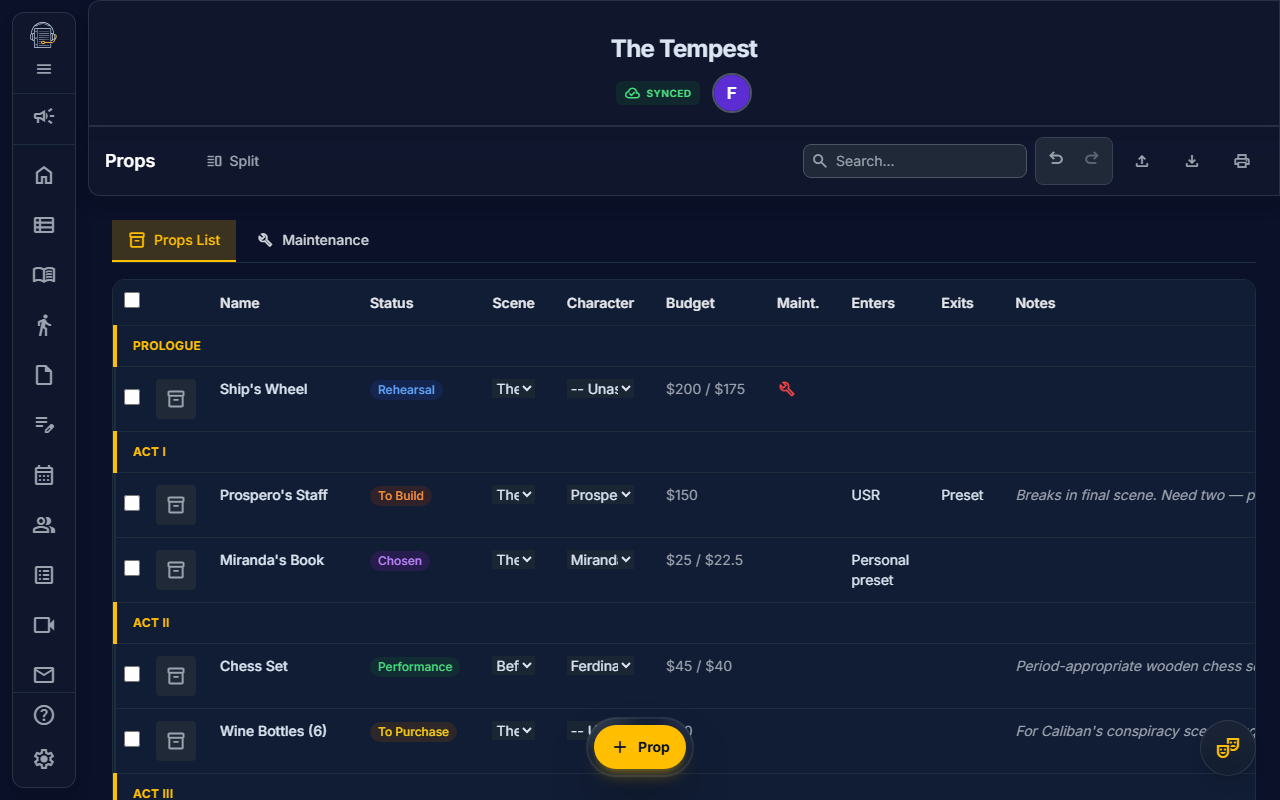
Overview
The Props tool provides comprehensive inventory management:
- Prop inventory — Full catalog with details and images
- Scene linking — Know which props appear where
- Source tracking — Stock, purchased, rental, borrowed, or built
- Budget management — Estimated and actual costs
- Maintenance log — Track repairs and cleaning needs
- AI extraction — Automatic prop identification from script import
- Org inventory promotion — Add valuable props to your org's permanent inventory
Getting Started
Opening Props
- Navigate to Props in the sidebar
- You'll see the props table with filtering options
Understanding the Interface
| Tab | Purpose |
|---|---|
| Props List | Main inventory table |
| Maintenance | Items needing repair or cleaning |
Adding Props
Manual Entry
- Click "+ Add Prop"
- Fill in the prop details:
- Name: What the prop is (e.g., "Tea Set")
- Type: Category (Hand, Set, Personal, etc.)
- Scene: Which scene it appears in
- Character: Who handles it
- Click Save
AI Script Import (On-Demand Extraction)
Props are not auto-extracted during initial script import. Instead, you trigger extraction when ready:
- Ensure you've imported a script (see Script Import)
- Go to Props tool
- Click "Extract from Script" in the Action Toolbar
- AI scans your ScriptBlocks for prop mentions
- A preview dialog shows detected props with scene links
- Select which props to add (or add all)
- Click "Import Selected"
Why on-demand? This approach:
- Lets you focus on shows structure first
- Provides a dedicated review step for props
- Avoids cluttered initial import
- Allows re-extraction if ScriptBlocks are edited
Prop Properties
Each prop entry tracks:
Basic Information
| Field | Description |
|---|---|
| Name | What the prop is |
| Type | Hand, Set, Personal, Consumable, etc. |
| Scene | Which scene(s) it appears in |
| Character | Who uses or handles it |
Movement Tracking
| Field | Description |
|---|---|
| Entrance | Where it enters from (SL, SR, Preset, etc.) |
| Exit | Where it goes after use |
Source Information
Track where each prop comes from:
| Source | Description |
|---|---|
| Stock | From your existing inventory |
| Purchased | Bought for this production |
| Rental | Borrowed from rental house |
| Borrowed | Loaned from individual/institution |
| Built | Constructed by props team |
Status Workflow
Props move through a status workflow:
Undefined → Chosen → To Build/Purchase → Rehearsal → Performance| Status | Meaning |
|---|---|
| Undefined | Not yet decided |
| Chosen | Selected but not acquired |
| To Build | Needs to be constructed |
| To Purchase | Needs to be bought |
| Rehearsal | In use for rehearsals |
| Performance | Show-ready |
Images
Add inspiration, reference, and actual photos:
- Click Add Inspiration, Add Reference, or Add Actual Photo
- Select one or more image files from Cloud Files
- The prop keeps a repository-backed image reference
- Remove any image from the image grid if it no longer belongs on the prop
Repository images preview through Cloud Files access, so they continue to respect the source file's current access policy.
Budget Tracking
Track costs for each prop:
Budget Fields
| Field | Description |
|---|---|
| Estimated Cost | Projected expense |
| Actual Cost | Real amount spent |
| Receipt | Upload receipt image |
| Rental Return Date | For rentals, when to return |
Budget Integration
Prop costs feed into the Budget Dashboard:
- See total props budget
- Compare estimated vs. actual
- Track rental returns
Adding to Organization Inventory
Props sourced from Stock, Purchased, or Built can be promoted to your organization's permanent inventory for reuse across productions:
- Open a prop's detail modal
- Click "Add to Org Inventory"
- The prop is registered in your organization's inventory with:
- Name, type, and source
- Link back to the originating production
- Condition and availability tracking
- The prop modal shows a ✅ "In Inventory" badge once linked
When does this happen automatically? During the Archive Sweep, you're prompted to inventory-check all eligible props before a production is archived.
Maintenance Tab
Track items needing attention:
Maintenance Log
For each prop, record:
- Issue: What needs fixing
- Status: Pending, In Progress, Complete
- Assigned To: Who's handling it
- Due Date: When it needs to be done
- Notes: Additional details
Common Maintenance Tasks
- Repairs (broken handle, torn fabric)
- Cleaning (food props, fabric items)
- Preparation (pre-show reset)
- Replacement (consumables)
Filtering and Viewing
Filter Options
- By Scene: Show only props for specific scenes
- By Status: Filter by workflow status
- By Type: Show only hand props, set pieces, etc.
- By Source: View rentals vs. purchases
Sorting
- Alphabetical: By prop name
- Scene Order: Following script sequence
- Status: Grouped by workflow stage
Batch Operations
Select multiple props for bulk actions:
- Check the boxes next to props
- Click "Batch Action"
- Choose action (delete, change status, etc.)
Printing Props Lists
Generate professional documentation:
- Click Print in the Action Toolbar
- Choose print format:
- Full Props List: All details
- Running List: Scene-by-scene breakdown
- Tracking Sheet: Checkbox format
- Print options:
- Include/exclude images
- Group by scene or alphabetically
Tips for Success
emoji_objects Use AI import — Let script analysis kickstart your list
emoji_objects Track everything — Better to have more detail than less
emoji_objects Update status regularly — Keep the workflow current
emoji_objects Upload images — Visual references prevent confusion
emoji_objects Log maintenance immediately — Note issues as they arise
emoji_objects Monitor rentals — Return dates prevent extra fees
Workflow Example
Pre-Production
- Import script → Characters and scenes are extracted
- Go to Props → Click "Extract from Script"
- Review the AI-detected prop list
- Refine and add details
- Research sources and pricing
- Enter estimated budgets
- Begin acquisition
Tech Week
- Update statuses as props arrive
- Log any issues to maintenance
- Assign entrance/exit locations
- Print running lists for crew
During Run
- Track consumables usage
- Monitor maintenance needs
- Manage rental returns
Video Tutorial
Video walkthrough: planned.
Related Guides
- Show Structure — Scenes for prop linking
- Costumes & Sizing — Similar tracking patterns
- Features Overview
Last updated: February 11, 2026 (Org Inventory promotion)