Digital Prompt Book
Requires script text access. Prompt Book is hidden unless the project has
scriptTextAccessenabled.
Overview
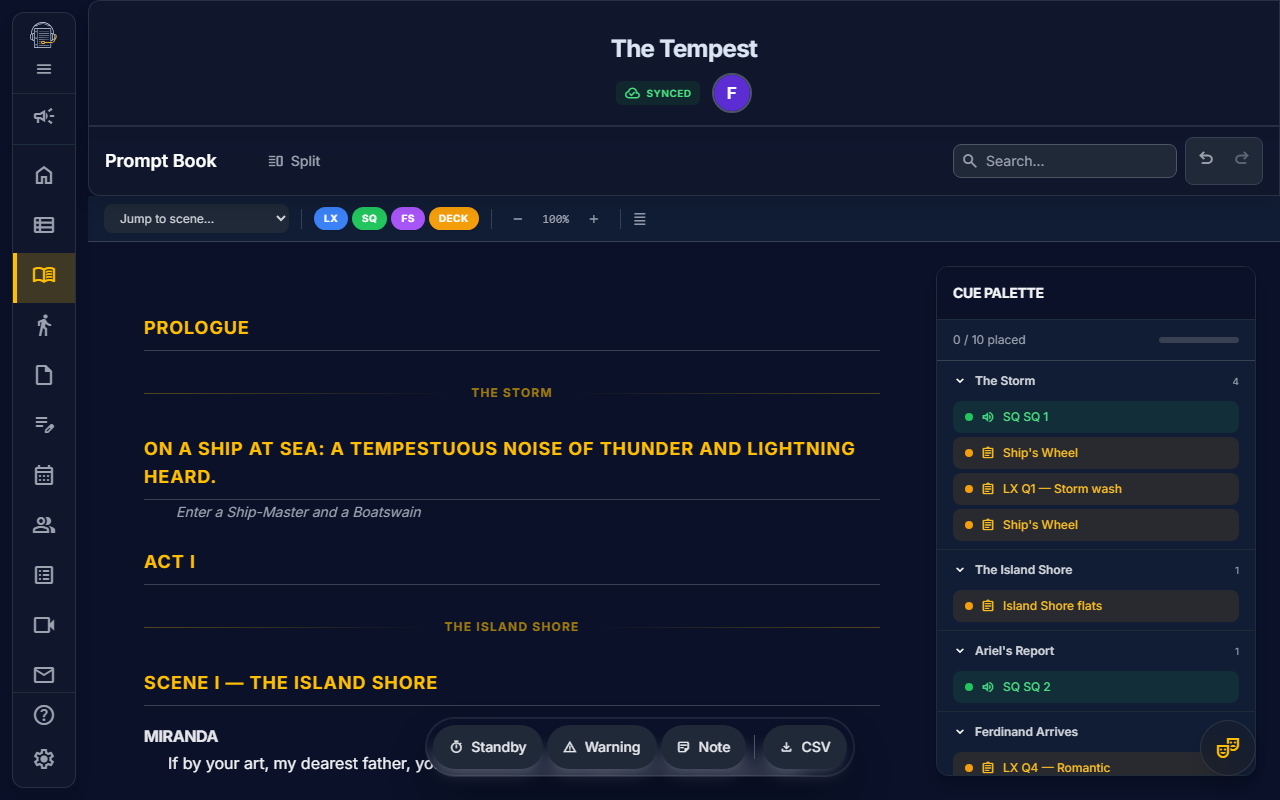
The Digital Prompt Book is the SM's primary calling document. It combines a scrollable script reader with cue anchoring so you can prepare calling materials from imported script text.
If this tool is missing, ask the production owner or maker/operator to confirm script text access.
Key Concepts
Script Canvas
The ScriptCanvas renders your imported script as a continuous scrollable panel. Each ScriptBlock (dialogue, stage direction, scene heading, etc.) is displayed with:
- Clickable words for cue placement
- Text scaling (adjust reading size)
- Script outline navigation (jump to acts, scenes, pages, and headings)
- Mini-map anchors for long scripts, with scene and page landmarks
Cue Departments
Each cue belongs to a department, shown as a color-coded marker on the script:
| Department | Code | Color | Source |
|---|---|---|---|
| Lighting | LX | Blue | Lighting Cue Builder |
| Sound | SQ | Green | Sound Cues tab |
| Follow Spot | FS | Purple | Follow Spot Assignments |
| Deck | DECK | Amber | Run Sheet |
Cue Anchors
A CueAnchor links a cue from its home module to a specific word in the script. Drop the cue directly on the intended word rather than only near the dialogue block. Anchors are resilient — if the script is edited, the system uses the saved text context to re-locate the cue at the correct position.
How to Place Cues
- Open the CuePalette — the sidebar lists all available cues, grouped by scene and department
- Drag a department cue from the palette onto the ScriptCanvas
- Drop it on the exact word where the cue should be called and verify the marker position
- Click any marker to see the CuePopover with details, or to remove the anchor
Create a Cue from the Script
Prompt Book editors can create a source cue and its word-level anchor in one action:
- In the CuePalette's Create cue section, drag LX, SQ, FS, or Deck onto the exact script word where the cue belongs.
- Enter the cue number and optional SM notes in the creation popover. When a preceding cue of the same type is already placed, On Book suggests the next numeric or alphabetic cue number.
- Resolve any duplicate-number warning, then select Save.
Saving creates the cue in its owning module and anchors it to the dropped word: LX and FS use Lighting, SQ uses Sound, and Deck uses the Run Sheet. The creation marker is enabled only when you have both Prompt Book edit access and edit access to that destination module. This creation workflow is limited to those four source types; Fly and AV cues cannot be created from Prompt Book.
Click a placed source cue to edit its cue number or notes without leaving Prompt Book. Those edits update the owning module as well.
Progress Tracking
The CuePalette shows a progress bar: "12/24 placed" — how many of your total cues have been anchored to the script.
Custom Cues
In addition to department cues, SMs can create custom annotations directly on the script:
- Standbys — "Standby LX Q5"
- Warnings — "Warning SQ Q3"
- Notes — Free-text callout at a script position
Use the FloatingToolbar to enter placement mode and click a word to add a custom cue. Use a custom cue for a standalone standby, warning, or note that should not create or update a record in a department module.
Print Reports
Calling Script
A dual-margin layout optimized for calling from a booth:
- Left margin: LX, SQ, and FS cues
- Right margin: DECK cues
- Scene breaks with headers
- Script blocks and cues follow the act-and-scene order in Show Structure
Cue Synopsis
A condensed table of all placed cues in Show Structure order — department, cue number, description, and script location.
CSV Export
Download all placed cues as a spreadsheet-ready CSV for sharing with designers and crew.
Tips
- Place cues early — anchor them during tech week so your calling script is ready for performances
- Use outline search to jump quickly through long scripts
- Check the progress bar to ensure no cues are missed before opening night
- Cues created in their home modules (Lighting, Sound, Run Sheet) automatically appear in the CuePalette
- Use the Create cue markers when a cue does not exist yet and you want to create and anchor it in one step
- Placed source cues plus custom standbys, warnings, and notes project automatically into idle Performance after their cloud sources finish loading
- Source cue-number edits update the idle Performance projection; deleted or unresolved source placements should be repaired before calling
- Once Places starts a show, Performance keeps that run's cue snapshot; later Prompt Book edits apply to the next run, not the active one
- Verify every cue against the paper or rehearsal prompt book before using Performance.
Related: Live Performance — use the performance workspace to call your placed cues during a live show.