Lighting
Human verification required. Lighting cues and follow spot sheets need review before tech or show use.
Track your lighting cues and follow spot assignments in one place.
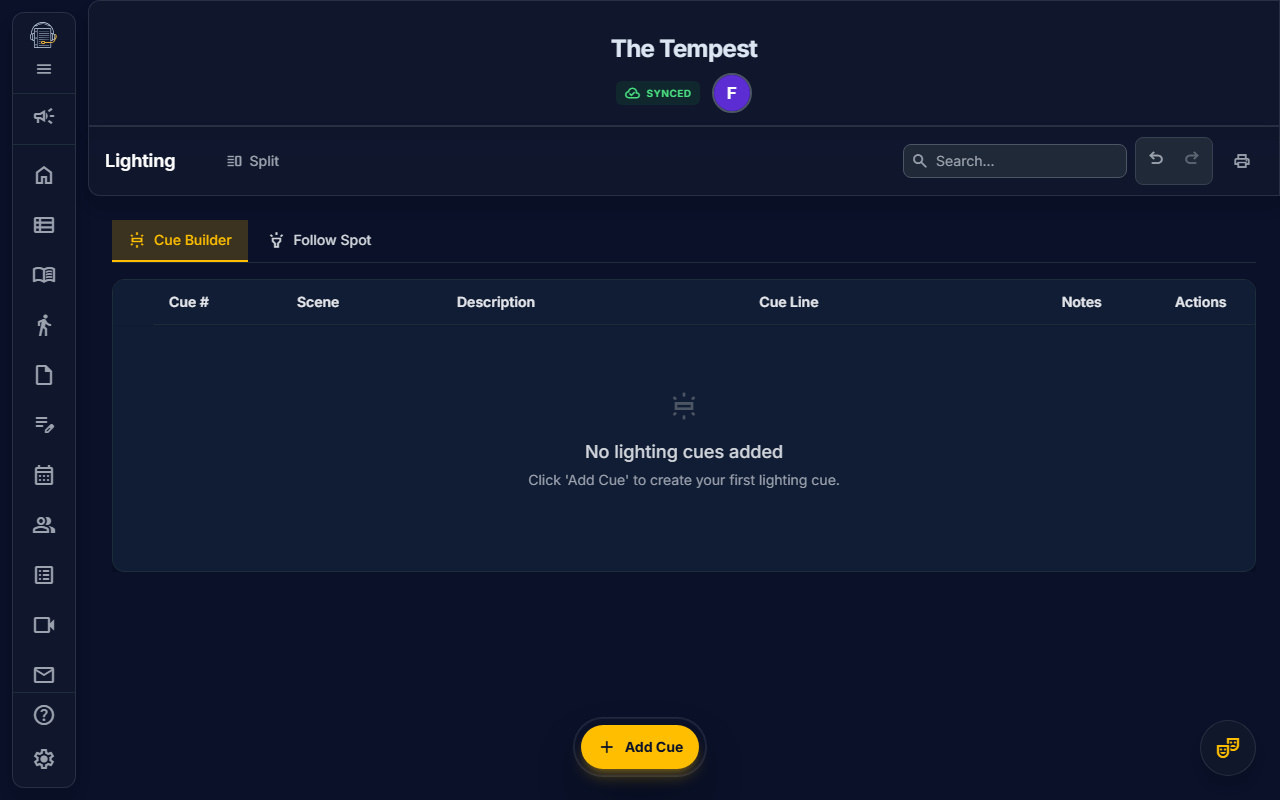
Overview
The Lighting tool provides a dedicated workspace for Stage Managers and Lighting Designers to build, manage, and print:
- Cue Builder — A scene-grouped lighting cue list (LX Q numbers, descriptions, cue lines, and notes)
- Follow Spot Setup — Define your follow spots, assign operators, and document positions
- Follow Spot Assignments — Per-cue pickups with character, action, frame/color, size, and intensity
The Lighting tool is available in the Designer workspace and requires the EDIT_LIGHTING permission.
Getting Started
- Navigate to the Lighting tab in the sidebar (tungsten emoji_objects icon)
- Choose a subtab:
| Subtab | Purpose |
|---|---|
| Cue Builder | Create and manage your LX cue list |
| Follow Spots | Set up spot operators and build per-spot cue sheets |
Cue Builder
The Cue Builder provides a traditional theatrical cue list for lighting.
Understanding Cues
Each cue entry includes:
| Field | Description |
|---|---|
| Cue Number | Your custom numbering (LX Q1, Q10.5, etc.) |
| Scene | The scene the cue belongs to |
| Description | What the cue does (e.g., "Blackout", "Warm wash DS") |
| Cue Line | The line or moment that triggers the cue |
| Notes | Additional notes for the board op or designer |
Adding Cues
- Click + Add Cue in the toolbar
- Fill in the cue number, description, and other fields
- Select the scene the cue belongs to
- Press Enter or click outside to save
Editing Cues
- Click any field in the cue row to edit it inline
- Changes auto-save immediately
- Press Escape to cancel an edit
Deleting Cues
- Click the delete icon on the cue row
- Deleted cues are soft-deleted (recoverable via undo)
Scene Grouping
Cues are visually grouped by their assigned scene, organized under Act headers. This mirrors how your cue list flows during the show.
Reordering Cues
- Drag and drop cues to reorder within a scene
- The sort order determines the print order
Cue Numbering Conventions
On Book Pro doesn't enforce a numbering scheme — use whatever works for your production:
- Sequential:
LX Q1,LX Q2,LX Q3 - Point cues:
Q10,Q10.5,Q10.7 - Department prefixed:
LX 1,LX 2
Follow Spot Setup
Before creating follow spot cues, define your spots.
Adding a Spot
- Switch to the Follow Spots subtab
- In the Spot Setup section, click + Add Spot
- Enter the spot details:
| Field | Description |
|---|---|
| Label | Spot designation (e.g., Spot 1, SR Spot, Center) |
| Operator Name | Who is running the spot |
| Position | Where the spot is located (e.g., "Booth", "Catwalk SR") |
Editing a Spot
- Click any field in the spot row to edit inline
- Changes save automatically
Deleting a Spot
- Click the delete icon on the spot row
- Warning: Deleting a spot removes its assignment from all follow spot cues
Follow Spot Assignments
Follow spot cues define what each spot does at each moment in the show.
Adding a Follow Spot Cue
- In the Follow Spots subtab, scroll to the cue list
- Click + Add Cue
- Fill in the cue fields:
| Field | Description |
|---|---|
| Cue Number | Your follow spot cue numbering (FS Q1, etc.) |
| Spot | Which spot (selected from your Spot Setup) |
| Character | Which character to pick up (dropdown from cast) |
| Action | What to do (pickup, fade, blackout, iris, etc.) |
| Frame | Gel frame or color (R33, L201, etc.) |
| Size | Beam size (full, waist, head, tight, etc.) |
| Intensity | Brightness level (0–100) |
| Scene | Scene the cue belongs to |
| Notes | Additional instructions for the operator |
Editing and Deleting
- Click any field to edit inline
- Click the delete icon to remove a cue (soft-delete with undo)
Drag-to-Reorder
Drag cues to adjust their order within a scene.
Printing
LX Cue List Report
Generate a professional print-ready LX cue list:
- Click the Print icon in the action toolbar
- Select LX Cue List from the report type dropdown
- Click Print
The report includes:
- Project header with show title
- Cues grouped by Act and Scene
- Columns: Cue #, Scene, Description, Cue Line, Notes
- Total cue count and generation date
Follow Spot Sheet Report
Generate a landscape-oriented follow spot operator sheet:
- Click the Print icon in the action toolbar
- Select Follow Spot Sheet from the report type dropdown
- Click Print
The report includes:
- Spot roster summary (spot label, operator, position)
- Cues grouped by Act and Scene
- Columns: Cue #, Spot, Scene, Character, Action, Frame, Size, Intensity, Notes
CSV Export
Exporting Lighting Cues
- Click the Download icon in the action toolbar while on the Lighting tab
- A CSV file downloads with columns: Cue Number, Scene, Description, Cue Line, Notes
- Open in Excel, Google Sheets, or any spreadsheet application
Exporting Follow Spot Cues
- Click the Download icon while on the Follow Spots subtab
- A CSV file downloads with columns: Cue Number, Spot, Character, Action, Frame, Size, Intensity, Scene, Notes
Tips for Success
emoji_objects Start building your cue list early — Even rough cue numbers help establish the flow before paper tech
emoji_objects Use consistent numbering — Pick a scheme and stick with it across the production
emoji_objects Link cues to scenes — Scene grouping keeps your cue list organized and makes printed reports much more useful
emoji_objects Set up spots before cues — Define your follow spots first so they appear in the cue dropdowns
emoji_objects Print for the booth — The Follow Spot Sheet report is designed to hand directly to your spot operators
emoji_objects Export for the LD — CSV export lets you share cue lists with the lighting designer in their preferred format
Related Guides
- Show Structure — Acts, scenes, and characters
- Sound — Sound cues and mic pack assignments
- Features Overview
Last updated: February 8, 2026 (initial release)