Budget Dashboard
Planning aid. Budget tracking helps production planning but is not a replacement for official accounting.
Track costs, manage allocations, and stay on budget.
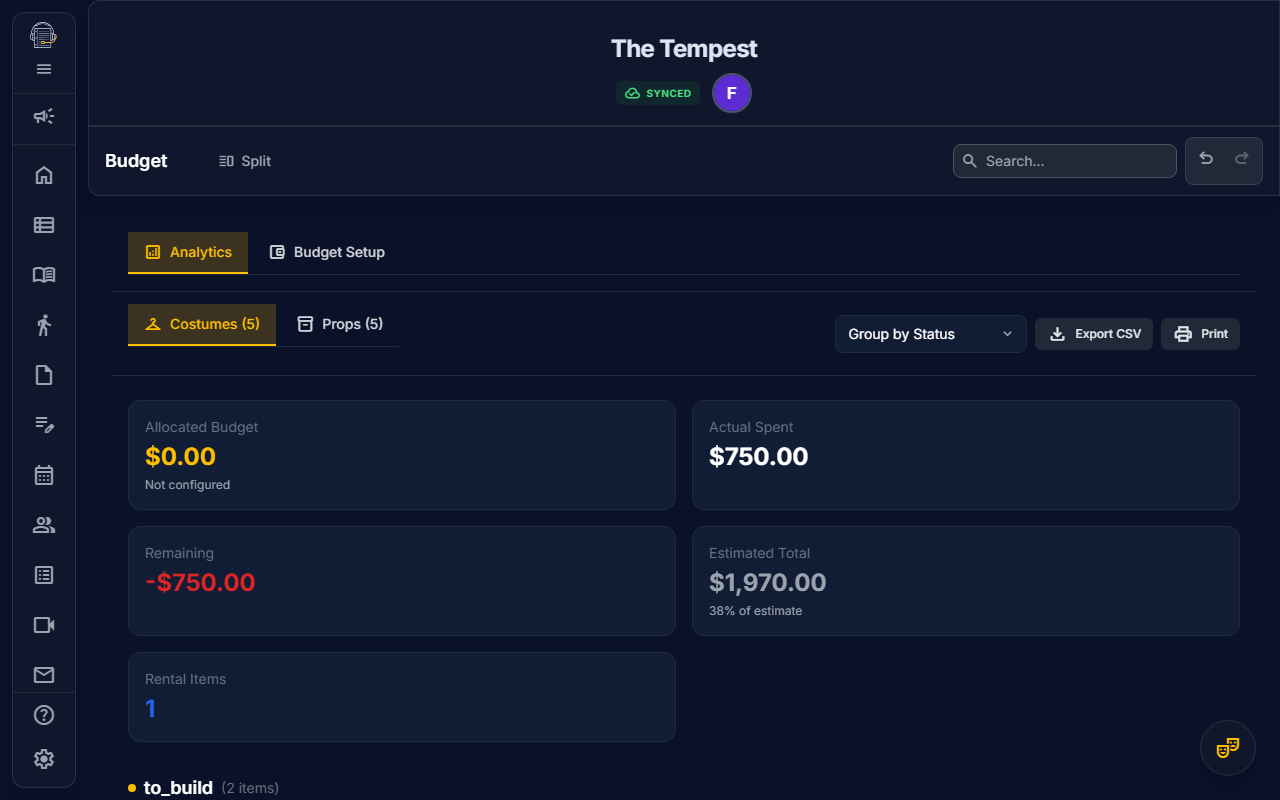
Overview
The Budget Dashboard gives Production Managers and Stage Managers real-time visibility into costume and props spending. Monitor actual vs. estimated costs, track rentals, and receive alerts when approaching budget limits.
Accessing the Budget
- Navigate to the Production workspace
- Select Budget from the tool tabs
- Choose between Analytics and Budget Setup tabs
Permissions
- Analytics Tab: Stage Managers, Designers, Production Managers, Owners
- Budget Setup Tab: Production Managers and Owners only
Analytics Tab
Summary Cards
At a glance, see:
- Estimated Cost — Total of all piece estimates
- Actual Spent — Sum of recorded expenses
- Variance — Difference (green = under, red = over)
- Rentals — Count of rented items
View Modes
Toggle between Costumes and Props budgets using the tab switcher.
Grouping Options
Sort your view by:
- Status — TBD, To Build/Buy, Ready to Fit, Complete
- Character — Grouped by cast member
- Source — Stock, Purchased, Rental, Borrowed, Built
Rental Returns Section
Track items with return deadlines:
- Overdue rentals highlighted in red
- Click to view rental details
Budget Setup Tab
Configuring Allocations
- Set Total Costume Budget
- Set Total Props Budget
- (Optional) Set category sub-budgets
Health Indicators
| Color | Status |
|---|---|
| 🟢 Green | On track (under 80%) |
| 🟡 Yellow | At risk (80-100%) |
| 🔴 Red | Over budget |
Budget Alerts
Enable alerts to receive notifications when:
- Any category exceeds 80% of allocation
- Total spending exceeds budget
- A rental return date is approaching
Printing Budget Reports
- Click the Print button in the action toolbar
- A professional budget summary generates with:
- Summary statistics
- Department breakdown
- Item-by-item listing
Tips
- Update actual costs as receipts come in
- Mark items as "Complete" to lock their costs
- Use the variance column to identify problem areas early
See also: Costumes • Props • Production Management