Rehearsal Scheduler
Planning aid. Compliance checks are planning aids, not union or legal advice.
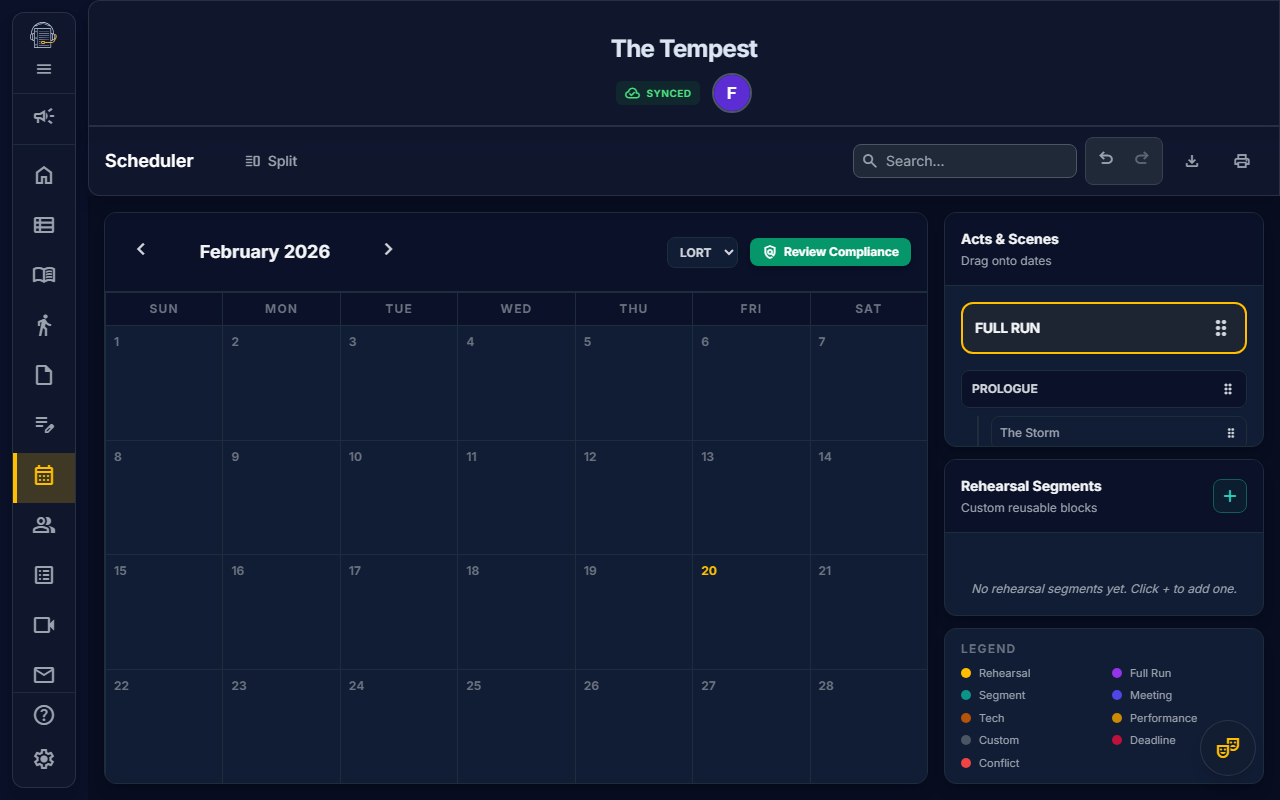
Overview
The Rehearsal Scheduler helps you:
- Plan rehearsals on a visual calendar
- Assign scenes and segments to specific dates
- Track conflicts for cast members
- Check AEA compliance (LORT or NEAT contracts)
Getting Started
Understanding the Interface
The scheduler has three main areas:
- Calendar Grid — Monthly view where you drag items to schedule
- Source Trays — Scenes and rehearsal segments to drag onto dates
- Detail Panel — Shows scheduled items for the selected date
Dense calendar weeks expand to give busier days more room. Each event chip keeps the title, local-time range, and location in a single compact row when space allows, and crowded days scroll inside the date cell instead of stretching the whole calendar.
Scheduling Rehearsals
Method 1: Drag Scenes to Dates
- Open the Scheduler tab
- In the left tray, find the scene you want to schedule
- Drag the scene onto a calendar date
- Set the time and duration in the detail panel
Method 2: Create Rehearsal Segments
Rehearsal Segments are custom blocks with specific character assignments.
- Click "+ New Segment" in the Segments tray
- Name the segment (e.g., "Act 1 Run-Through")
- Select which characters are called
- Drag the segment onto a date
Event Details
When creating or editing a scheduled item, review:
- Start and end time — Used for conflict checks, reports, and local-time display
- Location — Saved with the event and included in schedule outputs and change alerts
- Attendees — Confirm who is called; director and other non-cast attendees can be preserved with the event
- Call list review — Template-backed calls preserve their saved attendee list. If casting or Show Structure changes later, Scheduler flags future calls for review so you can refresh or lock the list intentionally.
- RSVP required — Available for meeting-type events
When you drop a scene, act, run, or rehearsal segment onto the calendar, On Book Pro checks the currently resolved call list before saving. If the called actors have known conflicts on that date, the schedule modal asks you to confirm before proceeding.
AEA Compliance Checking
The app can check selected rule sets and warn you of possible violations. The current selector is global to the Scheduler view; it is not configured per actor.
Supported Contracts
| Contract | Rules Checked |
|---|---|
| LORT | 12-hour turnaround, 8-hour daily max, 36-hour weekly rest |
| NEAT | 10-hour turnaround, 7-hour daily max, 34-hour weekly rest |
How to Enable
- Open Scheduler.
- Choose the active rule set, such as LORT or NEAT, from the Scheduler controls.
- Review warnings before finalizing the schedule.
Reading Warnings
Violations appear as red warning icons on calendar dates:
- 🔴 Turnaround Violation — Actor doesn't have enough rest between calls
- 🔴 Daily Maximum — Actor exceeds max hours in a single day
- 🔴 Weekly Rest — Actor doesn't get required consecutive days off
Click the warning to see which actors are affected.
Managing Conflicts
Future template-backed calls can show a Call list review banner when the saved call list is stale, unresolved, or ready to lock after casting becomes available. Open the event and choose Refresh call list or Lock call list when the current production structure and casting should become the saved attendance basis for that call.
Viewing Conflicts
- Click on a scheduled item
- Look for the "Conflicts" section
- Red highlights indicate actors with overlapping calls
Resolving Conflicts
- Reschedule one of the conflicting items
- Remove conflicting actors from the segment
- Add a note explaining the approved conflict
Filtering for Print
When printing schedules, you can filter by audience:
- Production Team View — Shows meetings and deadlines
- Rehearsal Schedule — Cast-only view (rehearsals, techs, performances)
- Full Schedule — Everything
See the Print System section in Features Overview for details.
The shared Reports modal also includes a Conflict Report. It prints cast conflict dates grouped by date or grouped by actor, depending on the selected report option.
Tips for Success
emoji_objects Schedule early and often — The calendar helps visualize your production timeline
emoji_objects Use segments for flexibility — You can call specific actors without scheduling entire scenes
emoji_objects Check compliance weekly — Review warnings before finalizing your schedule
emoji_objects Verify compliance warnings — Treat warnings as a review tool and confirm final decisions with the production's actual agreement or policy.
Related Guides
External Calendar Sync
You can subscribe to your rehearsal schedule from your personal calendar app (Google Calendar, Outlook, Apple Calendar, etc.). The subscription surface lives in Settings -> Profile, not the Scheduler toolbar.
The in-app Calendar opens in an agenda layout on phones and a month grid on larger screens. The Scheduler uses the same responsive pattern: phones show an agenda-style schedule so days, calls, and drop targets stay readable, while larger screens keep the month grid. Use the Calendar view switcher when you want to move between agenda and month browsing.
"Smart Feed" Technology
On Book Pro uses a Smart Feed system. Instead of syncing the entire production schedule to everyone, the calendar feed automatically filters events based on your role:
- Actors: You see only the rehearsals, fittings, and calls you are assigned to. Admin meetings and other noise are filtered out.
- Leadership roles: Owners, project admins, default Stage Manager, Assistant Stage Manager, Director, and Production Manager roles see the full project feed, including rehearsals, meetings, deadlines, tech, and performances.
- Designers: You see design runs, production meetings, and tech rehearsals, but skip daily scene work.
Feeds use the project's communication time zone and current project schedule data. If your account is linked to a Personnel profile, the feed uses that link, saved call lists, and current casting/show-structure data to decide which calls belong on your personal calendar.
Meeting RSVP status is only added to the subscribed calendar event when the meeting requires RSVP and the feed user is an explicit attendee for that meeting. Leadership access to the full feed does not make the subscriber an RSVP participant for every meeting.
How to Subscribe
- Open Settings from the sidebar, then choose the Profile subtab.
- Find the calendar subscription section.
- Open or copy the subscription URL.
- Add the URL to your calendar app using that app's subscription flow.
⚠️ Important Note on Sync Delays
External calendars (especially Google Calendar) check for updates periodically, typically every 12-24 hours.
Do not rely on your personal calendar for last-minute changes. Always check the app or your email for schedule changes made within 24 hours of the event.
Last updated: February 2026