Sound
Human verification required. Verify sound cues, mic plots, and playback setup before rehearsal or performance.
Manage your production's audio with soundboard, cue list, and Freesound integration.
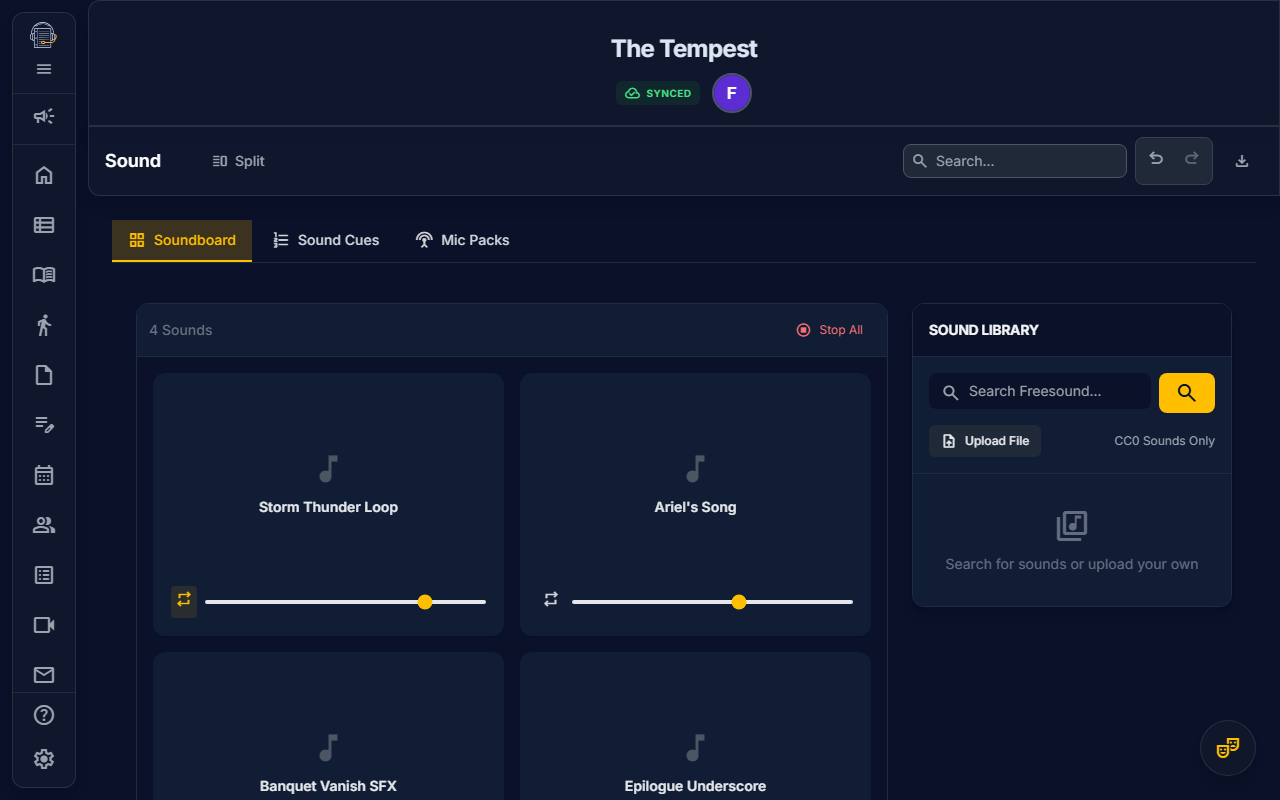
Overview
The Sound tool provides a complete audio environment for rehearsals:
- Soundboard — Grid-based pads for instant SFX playback
- Library — Organize and trim your sound clips
- Sound Cues — Theatrical cue list linked to scenes
- Freesound Integration — Search and download Creative Commons audio
- Offline Support — Cached audio plays without internet
Getting Started
Opening the Sound Tool
- Navigate to Sound in the sidebar
- You'll see four sub-tabs: Soundboard, Library, Sound Cues, and Mic Packs
Understanding the Interface
| Tab | Purpose |
|---|---|
| Soundboard | Interactive pads for playback |
| Library | Manage and edit sound clips |
| Sound Cues | Scene-linked cue list |
| Mic Packs | Wireless mic pack assignments and swap tracking |
Soundboard
The Soundboard provides instant access to frequently used sounds:
Playing Sounds
- Click any sound pad to play
- Click again to stop (or let it finish)
- Use the volume slider to adjust individual clip levels
Master Controls
- Master Volume: Global volume control for all sounds
- Stop All (Panic Button): Immediately stops all playing sounds
- Loop Toggle: Enable/disable looping per clip
Customizing Pads
Each pad can be customized:
- Color: Change the pad color for visual organization
- Name: Rename clips for quick identification
- Volume: Set default playback level
- Keyboard Shortcut: Assign hotkeys for hands-free triggering
Library
The Library is where you manage all your audio clips:
Adding Sounds
Option 1: Upload from Computer
- Click "Upload Sound"
- Select an audio file (MP3, WAV, OGG, M4A)
- The clip appears in your library
Option 2: Import from Freesound
- Click "Search Freesound"
- Enter a search term (e.g., "door slam", "thunder")
- Browse results with preview playback
- Click "Download" to add to your library
Option 3: Import from Repository
- Click "From Files"
- Select an audio file from your Cloud File Repository
- The clip links to your library
Repository-backed clips resolve audio through Cloud Files access checks at playback time. After a successful load, the browser caches the blob locally so repeated playback can work from the local cache. If a file is restricted, missing, or your project is not connected to cloud sync, the clip may not load until access is restored.
Editing Clips
Select a clip to access editing options:
Waveform Trimmer
Set custom start and end points:
- Click on a clip to open the editor
- View the waveform visualization
- Drag the start marker to set where playback begins
- Drag the end marker to set where playback ends
- Changes are non-destructive (original file preserved)
Clip Settings
- Name: Rename the clip
- Volume: Default playback volume (0-100%)
- Loop: Toggle continuous looping
- Color: Visual color for soundboard pad
Deleting Clips
- Select the clip
- Click Delete
- Confirm removal
Sound Cues
The Sound Cues tab provides a traditional theatrical cue list:
Understanding Cues
Each cue entry includes:
| Field | Description |
|---|---|
| Cue Number | Your custom numbering (Q1, SQ 10, etc.) |
| Scene | Which scene the cue occurs in |
| Cue Line | The line or action that triggers the cue |
| Description | What the sound is (e.g., "Doorbell rings") |
| Sound Clip | Link to a library clip (optional) |
| Notes | Additional details |
Adding Cues
- Click "+ Add Cue"
- Fill in the cue details
- Optionally link to a sound clip from your library
- Click Save
AI-Extracted Cues (On-Demand)
Sound cues are not auto-extracted during initial script import. Instead, you trigger extraction when ready:
- Ensure you've imported a script (see Script Import)
- Go to Sound tool → Sound Cues tab
- Click "Extract from Script" in the Action Toolbar
- AI scans stage directions in your ScriptBlocks for sound cues
- A preview dialog shows detected cues with scene links
- Select which cues to add (or add all)
- Click "Import Selected"
- Link actual sound clips to complete each cue
Why on-demand? This approach:
- Lets you focus on show structure first
- Provides a dedicated review step for cues
- Avoids cluttering the initial import
- Allows re-extraction after ScriptBlock edits
Reordering Cues
- Drag and drop to reorder within a scene
- Use the sort order field for fine control
Triggering from Cue List
- Click the Play button next to any linked cue
- The associated sound clip plays immediately
Freesound Integration
Freesound.org provides millions of Creative Commons sounds:
Searching Freesound
- Go to Library tab
- Click "Search Freesound"
- Enter keywords (e.g., "glass breaking", "crowd murmur")
- Results appear with:
- Preview button
- Duration
- License type
- Download button
Downloading
- Click Preview to listen before downloading
- Click Download to add to your library
- The clip downloads and caches locally
License Information
Freesound clips are typically:
- CC0: Public domain, no attribution required
- CC-BY: Attribution required in credits
On Book Pro tracks license info for each downloaded clip.
Offline Support
Sounds work without internet:
How It Works
- Downloaded sounds are cached in your browser's IndexedDB
- Repository-backed sounds are cached after the first successful access request
- Once cached, clips play even when offline
- Perfect for venues without reliable WiFi
Storage Considerations
- Sound files can be large
- Monitor your storage usage in browser settings
- Clear unused clips to free space
Mic Pack Assignments
The Mic Packs sub-tab helps A2s and Stage Managers track wireless mic pack assignments, battery status, and generate swap suggestions when packs are scarce.
Opening Mic Packs
- Navigate to Sound in the sidebar
- Click the Mic Packs sub-tab
Setup
- Set total packs — Enter the number of wireless packs available for the production
- Click "Generate Assignments" — The system assigns packs to mic-eligible actors sorted by first scene appearance
- If packs ≥ actors: everyone gets a dedicated pack
- If packs < actors: the first N actors get packs, and the swap algorithm runs for the rest
Lock State (Three-Way Cycle)
Each assignment has a lock state that you cycle by clicking the lock icon:
| State | Icon | Meaning |
|---|---|---|
| Normal | Standard assignment — available for sharing via swaps | |
| Locked | Dedicated pack (e.g., mic sewn into a costume) — never shared | |
| Low Priority | ⬇ | Preferred swap candidate — algorithm tries these packs first |
Tip: Mark ensemble or minor-role packs as Low Priority to keep principal actors' packs stable.
Minimum Pack Recommendation
A recommendation badge shows:
- Min: X — The absolute minimum packs needed (for rental budgeting)
- Min: X · Y w/ locks — If you have locked packs, the practical minimum may differ
Click "Use Minimum" to auto-set the pack count to the practical minimum.
Swap Algorithm
When packs < actors, the system suggests swaps automatically:
- Finds actors whose scenes don't overlap with a packed actor's scenes
- Prefers Low Priority packs first, then normal packs; skips locked packs
- Generates swap points at scene boundaries
- Highlights any actors with no available swap window (⚠️)
Managing Swaps
- Accept a swap → Mark as confirmed (✅)
- Reject a swap → Remove the suggestion
- Regenerate → Re-run the algorithm (preserves locks)
Scene Matrix
After generating assignments, a scrollable grid shows:
- Rows = Pack numbers
- Columns = Scenes in show order
- Cells = Which actor has the pack in each scene
- Highlighted cells = Swap points (actor changes)
Assignment Table Fields
| Column | Description |
|---|---|
| Pack # | Sequential pack number |
| Actor | The person wearing the mic |
| Characters | Characters played by this actor |
| Lock | Cycle: Normal → Locked → Low Priority |
| Battery | Cycle: Fresh → Good → Low → Dead |
| Frequency | RF frequency (editable) |
| Notes | Free text for the A2 |
Printing the Mic Plot
- Click Print in the Action Toolbar
- Select "Mic Plot" from the report list
- The report includes:
- Assignment Table — Pack #, actor, characters, frequency, notes
- Scene Matrix — Landscape grid showing who has each pack per scene
- Swap Summary — All swaps sorted by pack and scene order
Keyboard Shortcuts
| Shortcut | Action |
|---|---|
Space | Play/pause selected sound |
Escape | Stop all sounds (panic) |
| Custom keys | Trigger assigned soundboard pads |
Tips for Success
emoji_objects Build your soundboard early — Have common effects ready for day one
emoji_objects Use Freesound — Massive library of free, high-quality sounds
emoji_objects Trim to essentials — Use the waveform editor to isolate key moments
emoji_objects Test offline — Verify sounds work without network before tech
emoji_objects Assign keyboard shortcuts — Hands-free triggering during run-throughs
emoji_objects Number cues consistently — Match your lighting designer's numbering style
emoji_objects Mark ensemble packs as Low Priority — Keeps principal actors' mic assignments stable
Printing Sound Cues
Generate a paper cue list:
- Click Print in the Action Toolbar
- The cue list formats professionally:
- Cue numbers
- Scene assignments
- Descriptions and cue lines
- Notes
Video Tutorial
Video walkthrough: planned.
Related Guides
- Show Structure — Scenes for cue linking
- Script Import — How script analysis works
- Features Overview
Last updated: February 8, 2026 (Mic Pack Assignments, Lock State Tri-Cycle, Minimum Packs)