Line Notes
Requires script text access. Line Notes is hidden unless the project has
scriptTextAccessenabled.
Overview
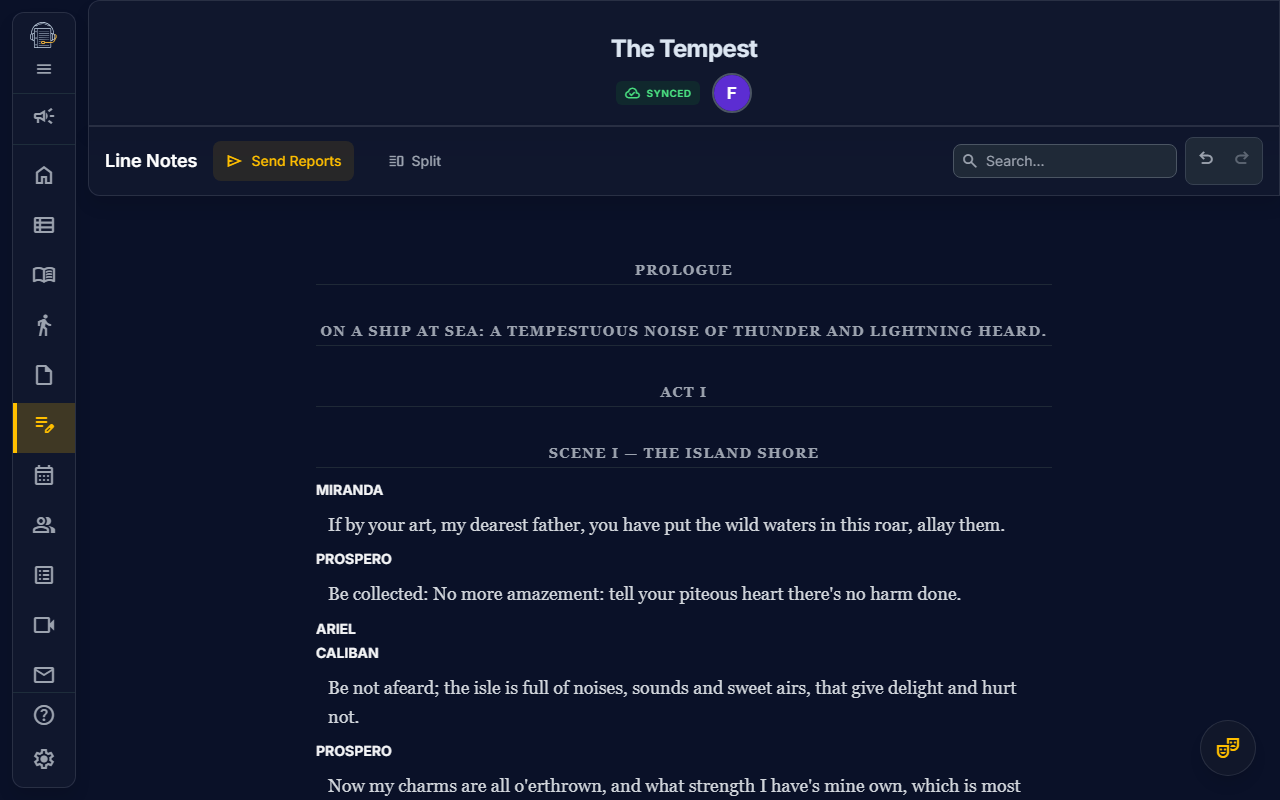
The Line Notes tool is a specialized interface designed for Stage Managers to rapidly log dialogue errors during rehearsals and distribute personalized reports to actors.
If this tool is missing, ask the production owner or maker/operator to confirm script text access.
- Rapid entry — Log issues like "Called", "Dropped", or "Paraphrased" with two clicks
- Actor-specific reports — Automatically generate and send individual emails to each actor with only their notes
- Script integration — Notes are linked directly to script text for context
- Working and stats views — Log daily notes in Working Notes, then review actor-level trends in Actor Stats
Getting Started
Opening Line Notes
- Navigate to Line Notes in the sidebar
- You'll see the script dialogue displayed in list format, organized by page
Understanding the Interface
| Area | Purpose |
|---|---|
| Script List | Dialogue lines from your imported script |
| Note Badges | Visual indicators on lines that have logged issues |
| Date Picker | Filter notes by rehearsal date |
| Line Notes Tray | Review the selected date, delete mistaken entries, and open the send preview |
| Actor Stats | Compare issue breakdowns, daily event counts, and lines with repeated events |
Logging a Note
During a run-through, follow along in the Line Notes view and log issues as they happen:
- Click the sentence where the error occurred. The selected sentence becomes the text saved with the note.
- Optionally click one or more words in that active sentence to highlight the exact wording that needs attention.
- Select the issue type from the inline selector:
| Issue Type | When to Use |
|---|---|
| Called | The actor asked for a line |
| Dropped | A line or section was skipped entirely |
| Paraphrased | The actor used different words but conveyed the meaning |
| Transposed | Words were spoken out of order |
| Late Pickup | There was a significant delay in picking up the cue |
- Auto-save — The issue is saved instantly and the selector closes so you can keep following the script.
- To add context, open the new note in the Line Notes tray, select Edit comment, enter the comment, and save it. You can return to the same control to revise the comment later.
Fast Workflow
The issue selector dismisses automatically after selection. Word highlights and comments are optional, so a quick sentence-level note still takes only the issue-selection click after choosing the sentence.
Distributing Reports
At the end of a rehearsal day, send batch reports to your cast:
- Click Preview send in the Line Notes tray
- The Send Line Notes preview opens for the selected date
- Review the delivery counts, recipient list, and rendered email preview for each deliverable actor
- Resolve any delivery warnings for unresolved actors or actors without email addresses
- Click Send Line Notes
Each actor receives a professionally formatted email containing only their own notes, sorted by the act-and-scene order in Show Structure. Selected words are highlighted and saved comments appear with the sentence in both the preview and delivered email. Actors without notes do not receive an email. If some notes cannot be delivered, the preview keeps those warnings visible so stage management can fix the actor link or email address before sending again. After a successful or partially successful send, the modal prevents a duplicate send attempt for the same preview.
Email Format
Each line note email includes:
| Column | Content |
|---|---|
| Scene | Scene label when available |
| Line | The dialogue text |
| Issue | What went wrong (Called, Dropped, etc.) |
The preview uses the same Line Notes email template as delivery, including the project-scoped Line Notes link, so stage management can inspect the message body before sending.
Reviewing Notes And Stats
Use the date picker in Working Notes to browse notes from previous rehearsals:
- See which issues recur for specific actors
- Track improvement over time
- Compare accuracy across different run-throughs
New notes are saved to the selected rehearsal date, so confirm the date before logging notes for a different run.
Open Actor Stats to review all recorded line-note events for one actor. The stats view includes an issue breakdown, a day-by-day event chart, and the script lines with the most associated events.
Permissions
| Action | Who Can Do It |
|---|---|
| Log Notes | Stage Managers, Owners |
| Send Reports | Stage Managers, Owners |
| View Notes | Stage Managers, Owners |
Tips for Success
emoji_objects Follow along live — Keep Line Notes open during runs to catch issues in real-time
emoji_objects Review before sending — Check the logged notes (indicated by badges) before dispatching reports
emoji_objects Use date filtering — Identify recurring issues for specific actors across rehearsals
emoji_objects Send promptly — Actors benefit most from receiving notes the same day as the rehearsal
emoji_objects Pair with Rehearsal Reports — Use Line Notes for dialogue accuracy and the Notes tool for general rehearsal reports
Related Guides
- Notes & Rich Text — Rehearsal reports and general notes
- Communications & Email — Email delivery system
- Show Structure — Script and scene management
- Features Overview
Last updated: February 2026